The Fundamental Question
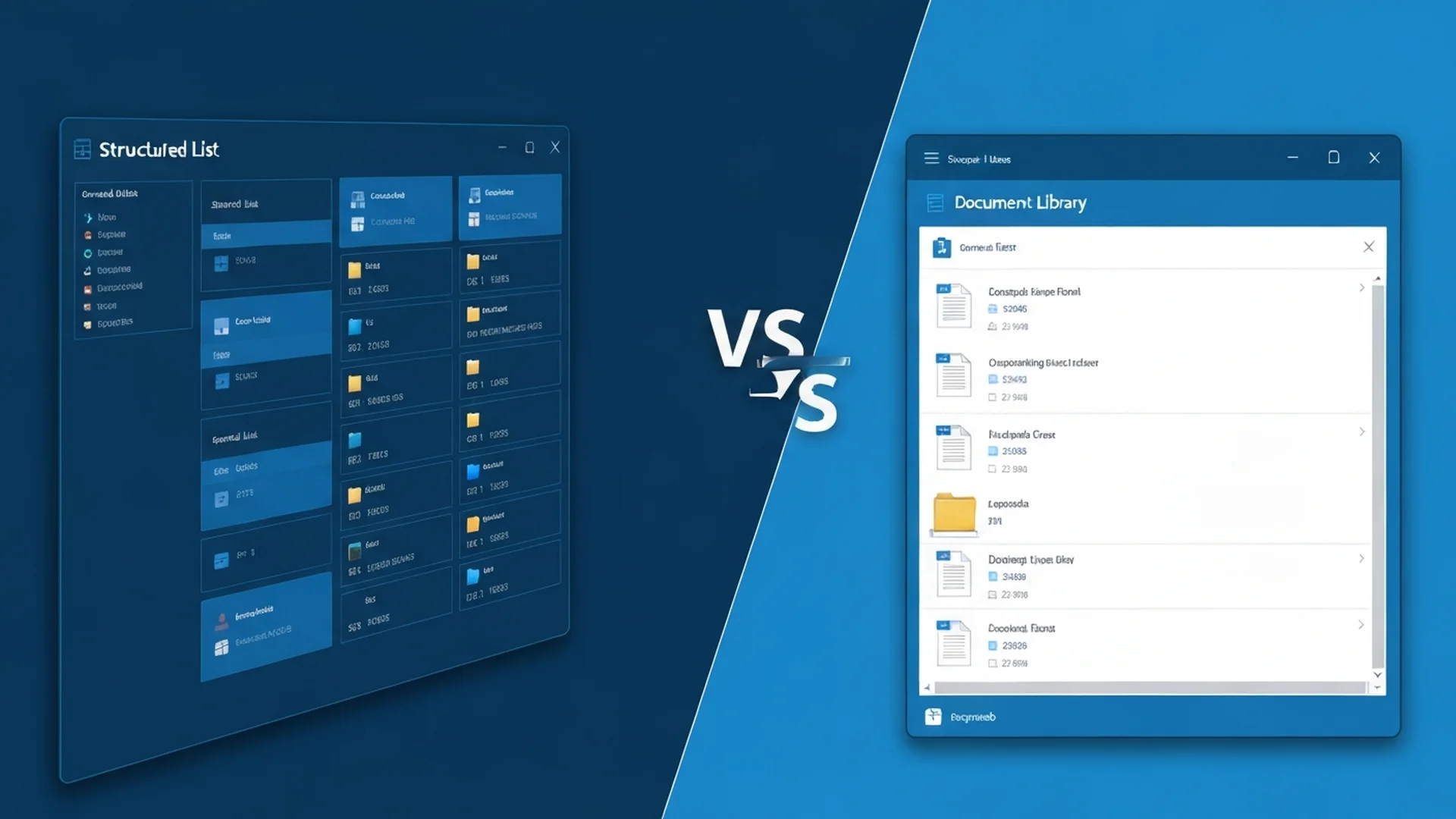
One of the most common questions in SharePoint planning: Should I use a List or a Document Library? This decision impacts performance, user experience, compliance, and long-term manageability. This guide provides a clear framework for making the right choice.

Understanding the Core Differences
What is a SharePoint List?
SharePoint Lists are structured data containers similar to database tables:
Characteristics:
- Rows of data with defined columns
- No file storage (just metadata)
- Each item is a record
- Optimized for data entry and tracking
- Excel-like data manipulation
Common Use Cases:
- Issue tracking
- Task management
- Employee directories
- Inventory tracking
- Event registrations
- Request forms
What is a Document Library?
Document Libraries are containers for files with associated metadata:
Characteristics:
- Stores files (documents, images, videos)
- Each file can have metadata columns
- Version control built-in
- Co-authoring support
- File preview capabilities
Common Use Cases:
- Document storage and management
- Policy repositories
- Project documentation
- Media asset management
- Template libraries
Decision Framework
Choose a List When:
Data is Primarily Structured
- Information fits neatly into columns
- No actual files need storage
- Data will be filtered, sorted, reported
High Volume Transaction Tracking
- Thousands of records expected
- Frequent add/update operations
- Dashboard and reporting needs
Integration Requirements
- Power Apps form front-end
- Power Automate workflows
- Power BI reporting
- External system data sync
Examples:
- Help desk tickets (fields: title, status, priority, assignee)
- Asset inventory (fields: name, location, value, condition)
- Contact directory (fields: name, department, phone, email)
Choose a Document Library When:
File Storage is Primary Need
- Actual documents must be stored
- Version history of files needed
- File preview and editing required
Document Collaboration
- Co-authoring on documents
- Check-in/check-out workflows
- Document approval processes
Content Management
- Folder-based organization useful
- File-based permissions needed
- Integration with desktop applications
Examples:
- Project documents (contracts, reports, presentations)
- Policy library (PDF policies with metadata)
- Marketing assets (images, videos, brochures)
Detailed Comparison
Storage and Limits
| Aspect | List | Document Library |
|--------|------|------------------|
| Max items | 30 million | 30 million files |
| Viewable items | 5,000 (threshold) | 5,000 (threshold) |
| Attachment size | 250 MB | 250 GB per file |
| Versioning | Limited | Full file versioning |
Performance Considerations
Lists Perform Better For:
- Rapid data queries
- Filtered views
- Calculated columns
- Bulk data operations
Libraries Perform Better For:
- File preview
- Office document editing
- Large file handling
- Sync to desktop
Metadata Capabilities
Both Support:
- Custom columns (all types)
- Content types
- Managed metadata
- Calculated fields
Library Advantages:
- Automatic property extraction
- File property promotion
- Content AI (Syntex)
Search Behavior
List Search:
- Searches all column values
- Returns list items
- Filters by metadata
Library Search:
- Full-text file content search
- File preview in results
- PDF content searchable
Hybrid Approaches
Lists with Attachments
When you need both structured data AND file storage:
Scenario: Expense reports with receipts
- List tracks: date, amount, category, status
- Attachment stores: receipt image
Limitations:
- 250 MB per attachment
- No version control on attachments
- Can't co-author attachments
Document Sets
When you need to group related documents:
Scenario: Project deliverables
- Document Set acts as "folder with metadata"
- All documents share Set metadata
- Can have Set-level workflow
Multiple Content Types in Libraries
When files need different metadata:
Scenario: Marketing asset library
- Images content type: resolution, usage rights
- Videos content type: duration, format
- Documents content type: author, review date
Common Patterns and Anti-Patterns
Anti-Pattern: List as File Storage
Problem: Creating list with attachment for every record to store files
Better: Use document library with metadata columns
Anti-Pattern: Library for Pure Data
Problem: Creating "documents" that are just Excel files of data
Better: Use SharePoint List with Power Apps front-end
Anti-Pattern: One Giant List/Library
Problem: Single container for all organizational data
Better: Multiple focused Lists/Libraries with clear purposes
Good Pattern: Linked List and Library
Scenario: Project management
- Project List: Project metadata (name, status, dates, owner)
- Project Library: Project documents
- Connection: Lookup column links documents to project
Migration Considerations
Converting List to Library (or Vice Versa)
Direct conversion not possible. Required approach:
- Export list data to Excel/CSV
- Create new Library/List with same columns
- Import data to new container
- Update references and workflows
- Migrate permissions
Third-Party Tools
Consider migration tools for:
- Large data volumes
- Complex metadata
- Workflow dependencies
- Permission preservation
Performance Optimization
For Lists
- Index columns used in filters
- Stay under 5,000 item view threshold
- Use indexed column filters first
- Implement pagination
For Libraries
- Organize with metadata, not deep folders
- Enable folder-based indexing if needed
- Use library analytics for cleanup
- Implement retention policies
Governance Recommendations
List Governance
- Define column naming standards
- Create list templates for consistency
- Implement validation rules
- Establish archival policies
Library Governance
- Standardize metadata requirements
- Configure appropriate versioning limits
- Implement sensitivity labels
- Define folder depth limits (max 2-3 levels)
Real-World Scenarios
Scenario 1: HR Onboarding
Requirements:
- Track new hire information
- Store signed documents
- Route for approvals
Solution:
- List: New Hire Tracking (name, start date, status, manager)
- Library: Onboarding Documents (offer letter, signed policies)
- Link: Lookup from library to list
Scenario 2: Quality Management
Requirements:
- Non-conformance tracking
- Supporting documentation
- Audit trail
Solution:
- List: NCR Tracking (details, status, corrective actions)
- Library: Quality Documents (procedures, evidence, reports)
- Attachments: Quick evidence on NCR items
Scenario 3: Knowledge Base
Requirements:
- Searchable articles
- Rich content with images
- Version tracking
Solution:
- Document Library with modern pages approach
- Or List with enhanced rich text column
- Depends on content complexity
Conclusion
The choice between SharePoint Lists and Document Libraries isn't always obvious, but understanding their distinct purposes makes the decision clear. Lists excel at structured data management and transactional tracking, while Libraries are purpose-built for document storage and collaboration. Often, the best solutions combine both, using each for its strengths.
Need help designing your SharePoint information architecture? Contact our specialists for a consultation.
Enterprise Implementation Best Practices
In our 25+ years managing enterprise SharePoint environments, the list versus library decision is one of the most impactful architectural choices organizations make. Choosing incorrectly creates technical debt that compounds as data volumes grow and user expectations evolve.
- Apply the File Test: The simplest decision criterion is whether the content has a primary file attachment. If users need to store, version, co-author, and manage documents, use a document library. If the content is structured data without file attachments such as tracking requests, inventory items, or project tasks, use a list. When items have both structured data and file attachments, use a document library with metadata columns rather than a list with attachments.
- Design for the 5,000 Item View Threshold from Day One: Both lists and libraries have a 5,000 item view threshold, but the impact differs. Libraries with thousands of documents benefit from folder-based metadata navigation that naturally segments content below the threshold. Lists with thousands of items require indexed columns and filtered default views to maintain performance. Design your information architecture with anticipated data volume projections and implement indexing and view strategies before content accumulates.
- Use Lists for Process Tracking and Libraries for Knowledge Assets: Enterprise SharePoint deployments should establish clear patterns for each content type. Change requests, help desk tickets, asset inventories, event registrations, and project status tracking belong in lists. Policies, procedures, contracts, deliverables, templates, and reference materials belong in libraries. Establishing these patterns as organizational standards through your SharePoint consulting governance framework prevents inconsistent implementations across departments.
- Leverage Microsoft Lists for Modern List Experiences: Microsoft Lists extends SharePoint list capabilities with modern views including gallery, board, and calendar layouts. Use Microsoft Lists for process-oriented content where visual representations add value such as Kanban-style project tracking, gallery views of employee profiles, and calendar views of event schedules. The modern Lists experience drives higher adoption than traditional list views.
- Combine Lists and Libraries with Lookups and Power Automate: The most effective SharePoint solutions combine lists and libraries through lookup columns and automated workflows. A contracts library stores the actual contract documents while a related contracts list tracks key terms, dates, and obligations extracted from those documents. Power Automate flows synchronize data between the list and library ensuring that metadata updates in either location propagate to the other.
Governance and Compliance Considerations
The list versus library decision has direct implications for compliance configuration because retention policies, sensitivity labels, and DLP rules apply differently to list items and library documents.
Retention labels apply to both list items and library documents, but disposition workflows and records management capabilities are more mature for document libraries. If content must be declared as a formal record with immutable preservation, a document library provides more robust records management features. Lists are suitable for transactional data retention but may not satisfy strict recordkeeping requirements for formal business records.
DLP policies scan document content within libraries for sensitive information patterns including PII, PHI, and financial data. DLP scanning is limited for list items because the content exists in structured columns rather than scannable document files. If your compliance framework requires automated detection and protection of sensitive content, store that content in document libraries where DLP can inspect file contents rather than in list columns where detection coverage is incomplete.
For HIPAA-regulated organizations, patient-related structured data in lists and clinical documents in libraries may both contain PHI but require different compliance configurations. Ensure that list columns containing PHI are covered by appropriate sensitivity labels and that the lists are included in your SharePoint support compliance monitoring program alongside document libraries.
Measuring Success and ROI
Information architecture decisions compound their impact over time. Measuring whether your list and library choices are working requires tracking both technical performance and user satisfaction indicators.
Track view load times for high-volume lists and libraries targeting under 3 seconds for default views. Monitor the percentage of lists and libraries approaching the 5,000 item threshold to proactively implement performance mitigation. Measure user findability through search analytics comparing how quickly users locate structured data in lists versus documents in libraries. Track Power Automate flow success rates for workflows that integrate lists and libraries. Survey users quarterly on their ability to determine where to store different content types targeting 85 percent confidence in the list versus library decision. Monitor help desk tickets related to storage confusion and performance issues targeting continuous reduction.
Design your SharePoint information architecture with confidence. Contact our team for an architecture assessment and discover how our SharePoint consulting services can optimize your list and library design for maximum performance and usability.
Common Challenges and Solutions
Organizations implementing SharePoint Lists vs Document Libraries consistently encounter obstacles that, if left unaddressed, undermine adoption and erode stakeholder confidence. Drawing on two decades of enterprise SharePoint consulting, these are the challenges we see most frequently and the proven approaches for overcoming them.
Challenge 1: User Adoption Resistance
Many organizations deploy SharePoint Lists vs Document Libraries with technically sound configurations but fail to achieve meaningful adoption because end users default to familiar workflows. The root cause is almost always insufficient change management rather than flawed technology. The resolution requires a structured approach: developing role-specific training modules that demonstrate tangible time savings for each user persona, combined with executive communications that reinforce the strategic importance of the transition. Organizations that address this proactively report 40 to 60 percent fewer support tickets within the first 90 days of deployment. Establishing a dedicated governance committee with representatives from IT, compliance, and business stakeholders ensures ongoing alignment between technical configuration and organizational objectives.
Challenge 2: Content Sprawl and Information Architecture Degradation
Over time, SharePoint Lists vs Document Libraries environments accumulate redundant, outdated, and trivial content that degrades search relevance and confuses users. Without proactive content lifecycle management, the signal-to-noise ratio deteriorates and user trust in the platform erodes. We recommend establishing automated retention policies that flag content for review after defined periods of inactivity, combined with content owner accountability structures that assign clear responsibility for each site collection and library. Tracking these metrics through SharePoint health dashboards provides early warning indicators that allow administrators to intervene before minor issues become systemic problems affecting enterprise-wide productivity.
Challenge 3: Compliance and Audit Readiness Gaps
SharePoint Lists vs Document Libraries implementations in regulated industries often lack the audit trail depth and policy enforcement rigor required by frameworks such as HIPAA, SOC 2, and GDPR. Retroactive compliance remediation is significantly more expensive and disruptive than building compliance into the initial design. The most effective mitigation strategy involves embedding compliance requirements into the information architecture from day one. Configure Microsoft Purview retention labels, DLP policies, and audit logging before deploying content, and validate compliance posture through regular internal audits. Enterprises operating in regulated industries such as healthcare and financial services must pay particular attention to this challenge because compliance violations carry significant financial and reputational consequences. Regular audits conducted quarterly at minimum help organizations maintain alignment with evolving regulatory requirements and internal policy updates.
Challenge 4: Inconsistent Governance Across Business Units
When different departments implement SharePoint Lists vs Document Libraries independently, inconsistent naming conventions, metadata schemas, and security configurations create silos that undermine cross-functional collaboration and complicate compliance reporting. Addressing this requires centralizing governance policy definition while allowing controlled flexibility at the departmental level. A hub-and-spoke governance model balances enterprise consistency with departmental autonomy. Organizations that invest in structured change management programs achieve adoption rates 35 percent higher than those relying on organic discovery alone. Executive sponsorship combined with department-level champions creates the organizational momentum necessary for sustained success.
Integration with Microsoft 365 Ecosystem
SharePoint Lists vs Document Libraries does not operate in isolation. Its value multiplies when connected to the broader Microsoft 365 ecosystem, creating unified workflows that eliminate context switching and reduce manual data transfer between applications.
Microsoft Teams Integration: Embed SharePoint Lists vs Document Libraries dashboards and document libraries as Teams tabs to create unified workspaces where conversations and structured content management coexist within a single interface. Teams channels automatically provision SharePoint document libraries, which means sharepoint lists vs document libraries configurations and content flow seamlessly between collaborative conversations and structured document management. Users can surface SharePoint content directly within Teams tabs, reducing the friction that typically causes adoption to stall.
Power Automate Workflows: Implement scheduled flows that perform routine SharePoint Lists vs Document Libraries maintenance tasks including permission reports, content audits, and usage analytics without requiring manual intervention. Automated workflows triggered by SharePoint events such as document uploads, metadata changes, or approval completions eliminate repetitive manual tasks. Organizations typically automate 15 to 25 processes within the first quarter, saving an average of 8 hours per week per department. These automations also create audit trails that satisfy compliance requirements for regulated industries.
Power BI Analytics: Build executive dashboards that aggregate SharePoint Lists vs Document Libraries metrics alongside other business KPIs, providing a holistic view of digital workplace effectiveness and investment returns. Connecting SharePoint data to Power BI dashboards provides real-time visibility into content usage patterns, adoption metrics, and operational KPIs. Decision makers gain actionable intelligence without requiring manual report generation, enabling faster response to emerging trends and potential issues.
Microsoft Purview and Compliance: Implement retention policies that automatically manage SharePoint Lists vs Document Libraries content lifecycle, preserving business-critical records for required periods while disposing of transient content to reduce storage costs and compliance exposure. Sensitivity labels, data loss prevention policies, and retention schedules configured in Microsoft Purview extend automatically to sharepoint lists vs document libraries content. This unified compliance framework ensures that governance policies apply consistently across the entire Microsoft 365 environment rather than requiring separate configuration for each workload. For organizations subject to HIPAA, SOC 2, or FedRAMP requirements, this integrated approach significantly reduces compliance management overhead.
Getting Started: Next Steps
Implementing SharePoint Lists vs Document Libraries effectively requires more than technical configuration. It demands a strategic approach grounded in your organization's specific business requirements, compliance obligations, and growth trajectory. The difference between a deployment that delivers measurable ROI and one that becomes shelfware often comes down to the quality of upfront planning and expert guidance.
Begin with a focused assessment of your current SharePoint environment. Evaluate your existing information architecture, permission structures, content lifecycle policies, and user adoption patterns. Identify gaps between your current state and the target state required for successful sharepoint lists vs document libraries implementation. This assessment typically takes 2 to 4 weeks and produces a prioritized roadmap that aligns technical work with business outcomes.
Our SharePoint specialists have guided organizations across healthcare, financial services, government, and education through hundreds of successful implementations. We bring deep expertise in SharePoint architecture, governance frameworks, and compliance alignment that accelerates time to value while minimizing risk.
Ready to move forward? Contact our team for a complimentary consultation. We will assess your environment, identify quick wins, and develop a phased implementation plan tailored to your organization's needs and timeline. Whether you are starting from scratch or optimizing an existing deployment, our enterprise SharePoint consultants deliver the depth and accountability enterprise SharePoint work requires.
Written by the SharePoint Support Team
Senior SharePoint Consultants | 25+ Years Microsoft Ecosystem Experience
Our senior SharePoint consultants bring deep expertise spanning 500+ enterprise migrations and compliance implementations across HIPAA, SOC 2, and FedRAMP environments. We cover SharePoint Online, Microsoft 365, migrations, Copilot readiness, and large-scale governance.
Expert SharePoint Services
Frequently Asked Questions
Can SharePoint replace a traditional document management system?▼
What is the maximum file size and storage limit in SharePoint Online?▼
How should we organize documents in SharePoint: folders or metadata?▼
How does version control work in SharePoint document libraries?▼
What is the recommended SharePoint site architecture for large enterprises?▼
Need Expert Help?
Our SharePoint consultants are ready to help you implement these strategies in your organization.
Continue Reading in Document Management
SharePoint Content Types & Metadata Guide
Master SharePoint content types and metadata to transform document management, improve search accuracy, and prepare your environment for AI-powered tools like Microsoft Copilot.
Document ManagementSharePoint DMS: Enterprise Document Management Guide
Build an enterprise document management system in SharePoint with content types, metadata, retention policies, workflows, and compliance controls.
Document ManagementEnterprise Document Management in SharePoint: The Definitive Guide
Transform your document management with SharePoint best practices that reduce search time by 50% and improve compliance.
FeaturesSharePoint Premium: Advanced Features Worth the Investment
Discover the advanced capabilities of SharePoint Premium including AI-powered document processing, enhanced content services, and enterprise-grade compliance features that justify the investment.
GovernanceInformation Architecture Planning for SharePoint Success
Master the art of SharePoint information architecture with proven planning frameworks, taxonomy design principles, and navigation strategies that scale across the enterprise.
MobileSharePoint Mobile App: Optimizing the Mobile Experience
Learn how to optimize SharePoint for mobile users with responsive design strategies, mobile app configuration, offline access setup, and performance tuning techniques.