The Gap Between Policy and Reality
External sharing in SharePoint Online is the capability most enterprises say they want to govern tightly and the capability where most enterprises have the largest gap between stated policy and actual practice. In a typical enterprise tenant, external sharing settings reflect conservative intent, but the actual content sharing patterns include thousands of active "anyone" links, hundreds of external guests with unrenewed access, and sites with external sharing enabled that no one can explain.
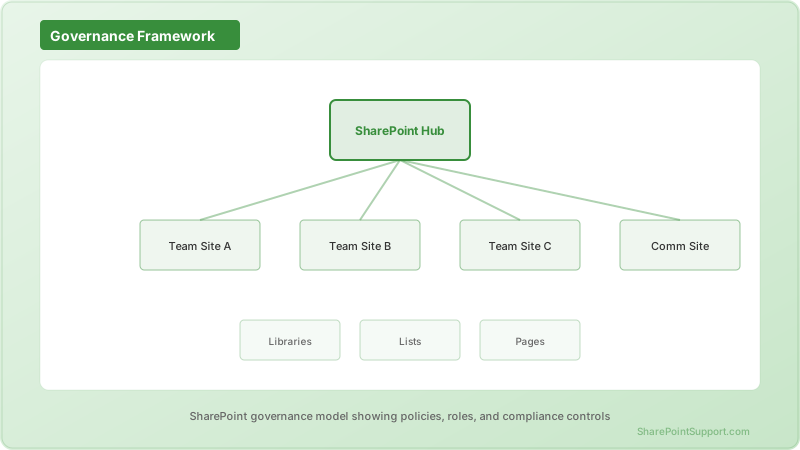
This article is about closing that gap. It walks through the specific technical controls that matter, the governance model that makes those controls actually work, and the audit and remediation patterns that have held up in healthcare, financial services, government, and other compliance-heavy environments.
The Four Sharing Tiers
SharePoint Online supports four tenant-level sharing tiers, and the choice shapes everything downstream.
Tier 1: Anyone with a link. Content can be shared via a link that does not require authentication. Anyone with the link can access the content. This is the most permissive setting and is the source of most enterprise sharing incidents.
Tier 2: New and existing guests. Content can be shared with external people who receive an invitation and authenticate as Azure AD guests. New external people can be invited, and existing guests can continue to access shared content.
Tier 3: Existing guests only. Content can be shared with external people who are already guests in the tenant, but no new guests can be invited. This is the working setting for organizations that want controlled external collaboration without open-ended invitation.
Tier 4: Only people in your organization. External sharing is fully disabled. Only internal users can receive sharing invitations.
The tenant-level setting caps the sharing capabilities of every site in the tenant. Individual sites can be configured to be more restrictive than the tenant default, but they cannot exceed it.
The Working Governance Pattern
The pattern that succeeds in regulated enterprises is three-tiered:
- Tenant default of Tier 2 or Tier 3, which allows controlled external collaboration as the base capability.
- Site-level classification that maps each SharePoint site to a sharing profile: Internal Only, Partner Collaboration, Customer Portal, or Public.
- Automation that enforces the site-level sharing settings based on the site classification.
Each profile has explicit sharing configuration. Internal Only sites have external sharing fully disabled. Partner Collaboration sites allow existing guests only. Customer Portal sites allow new guest invitations with specific domain allowlists. Public sites allow anyone-with-link sharing but with enforced link expiration.
The classification is captured in site metadata and enforced automatically. No individual site owner decides the sharing configuration. The classification drives the configuration.
Technical Controls That Matter
Six technical controls provide the primary enforcement layer.
1. Tenant-Level Sharing Policies
Configure these at the SharePoint admin level.
```powershell
Connect-SPOService -Url "https://contoso-admin.sharepoint.com"
# Allow new and existing guests (Tier 2) as tenant-wide default
Set-SPOTenant -SharingCapability ExternalUserSharingOnly
# Make the default link type Specific People (most restrictive)
Set-SPOTenant -DefaultSharingLinkType Direct
# Default permission on links is View unless explicitly granted Edit
Set-SPOTenant -DefaultLinkPermission View
# Require MFA for guest users (effective when combined with Conditional Access)
Set-SPOTenant -RequireAcceptingAccountMatchInvitedAccount $true
# Expire external users after 90 days
Set-SPOTenant -ExternalUserExpirationRequired $true
Set-SPOTenant -ExternalUserExpireInDays 90
# Expire anyone links after 14 days when anyone sharing is enabled anywhere
Set-SPOTenant -RequireAnonymousLinksExpireInDays 14
```
2. Site-Level Sharing Configuration
Override tenant settings per site based on classification.
```powershell
# Internal-only site
Set-SPOSite -Identity "https://contoso.sharepoint.com/sites/InternalHR" -SharingCapability Disabled
# Partner collaboration site with existing guests only
Set-SPOSite -Identity "https://contoso.sharepoint.com/sites/Partners" -SharingCapability ExistingExternalUserSharingOnly
# Customer portal with new guest invitations allowed
Set-SPOSite -Identity "https://contoso.sharepoint.com/sites/CustomerPortal" -SharingCapability ExternalUserSharingOnly
```
3. Domain Allowlists and Blocklists
Restrict which external domains can be invited as guests. The most common pattern is a blocklist that prevents sharing to free email domains (gmail.com, yahoo.com, outlook.com) for enterprise content, or an allowlist that restricts sharing to specific partner domains only.
```powershell
# Allowlist specific domains
Set-SPOTenant -SharingDomainRestrictionMode AllowList -SharingAllowedDomainList "partner1.com partner2.com vendor3.com"
# Alternative: block specific domains
Set-SPOTenant -SharingDomainRestrictionMode BlockList -SharingBlockedDomainList "competitor.com"
```
4. Conditional Access Policies
Require MFA for external users, restrict access from unmanaged devices, and enforce session controls. Conditional Access policies apply to the Azure AD guest user account and propagate to SharePoint access.
5. Sensitivity Label Enforcement
Sensitivity labels can prevent specific content from being shared externally. A Confidential label can be configured to block external sharing entirely, overriding any sharing capability settings on the containing site.
6. Audit Logging
Every external sharing event is logged to the unified audit log. Logs can be queried through the compliance center, exported via PowerShell, or streamed to a SIEM.
```powershell
# Query external sharing events from the last 30 days
$startDate = (Get-Date).AddDays(-30)
$endDate = Get-Date
Search-UnifiedAuditLog -StartDate $startDate -EndDate $endDate -Operations "SharingSet","AnonymousLinkCreated","SecureLinkCreated","AddedToSecureLink" -ResultSize 5000 |
Select-Object CreationDate, UserIds, Operations, @{N='AuditData';E={$_.AuditData | ConvertFrom-Json}} |
Export-Csv -Path "D:\Audit\ExternalSharing_Last30Days.csv" -NoTypeInformation
```
The Guest Lifecycle Problem
Guest accounts have a lifecycle problem. They get created when external users accept sharing invitations, they accumulate over time, and they rarely get cleaned up. A tenant that has been running for 5 years often has thousands of guest accounts, many of which represent people who no longer have any legitimate reason to access content.
Access Reviews
Azure AD Access Reviews automate the cleanup. A quarterly access review notifies site owners to confirm whether each guest still needs access. Guests not confirmed are automatically removed.
The working configuration runs access reviews quarterly, notifies site owners by email, requires explicit confirmation to retain access, and auto-removes guests that do not receive confirmation within 14 days.
Guest Expiration
The tenant-level ExternalUserExpireInDays setting automatically expires guest access after a configured number of days of inactivity. Setting this to 90 days removes most accidental long-term guest retention without significantly affecting active collaborations.
Inactive Guest Reports
Monthly reports of inactive guests surface the cleanup opportunities that the automated controls missed. The report lists guests who have not signed in within the configured threshold and recommends removal.
```powershell
# Find inactive guests from Microsoft Graph
Connect-MgGraph -Scopes "User.Read.All", "AuditLog.Read.All"
$cutoff = (Get-Date).AddDays(-90).ToString("yyyy-MM-ddTHH:mm:ssZ")
Get-MgUser -All -Filter "userType eq 'Guest'" -Property "Id,DisplayName,Mail,SignInActivity,CreatedDateTime" |
Where-Object { $_.SignInActivity.LastSignInDateTime -lt $cutoff -or -not $_.SignInActivity.LastSignInDateTime } |
Select-Object DisplayName, Mail, CreatedDateTime, @{N='LastSignIn';E={$_.SignInActivity.LastSignInDateTime}} |
Export-Csv -Path "D:\Audit\InactiveGuests.csv" -NoTypeInformation
```
The Anyone Link Problem
Anyone links are shareable URLs that do not require authentication. They are the source of most sharing incidents because they are easy to create, easy to forward, and impossible to audit at the recipient level.
The working policy for most enterprises is disabling anyone links entirely at the tenant level. When specific sites need anyone sharing (typically public-facing customer portals), enable it only for those sites and configure aggressive expiration (14 days or less).
For organizations that cannot fully disable anyone links, the minimum controls are: default expiration on all new anyone links, mandatory password on sensitive anyone links, and monthly auditing of active anyone links with automated takedown of links older than the expiration threshold.
Reporting and Observability
The metrics that matter for external sharing governance.
- External sharing events per week, trended over time. Sudden spikes often indicate new collaboration patterns that need governance attention.
- Active guest count, trended over time. Steady growth without corresponding cleanup indicates a lifecycle problem.
- Active anyone links, trended over time. This number should stay flat or decrease over time. Growth indicates policy gaps.
- Guest signin success rate. Low signin success often indicates sharing to guests who cannot authenticate, usually due to blocked domains or consumer email accounts.
- Sharing incidents per 1,000 external shares. The ratio of investigated incidents to total sharing events is a measure of policy quality.
These metrics feed a weekly dashboard that governance, security, and compliance teams all monitor.
Common Failure Modes
Three patterns consistently produce external sharing incidents.
Failure 1: Tenant default that is too permissive. The tenant allows anyone links, and site owners create them for convenience. Content ends up publicly accessible via unauthenticated URLs. The fix is setting the tenant default to Specific People and enabling anyone links only for explicit site classifications.
Failure 2: Guest accounts without lifecycle. Guests are created and never expire. Over years, the guest population accumulates to numbers that cannot be manually reviewed. The fix is automated access reviews plus external user expiration at the tenant level.
Failure 3: Sensitivity labels not enforced on sharing. Labels exist but do not actually block external sharing of labeled content. Users share confidential content externally without any technical control catching them. The fix is configuring sensitivity labels with explicit sharing restrictions.
Getting Started
The fastest path to working external sharing governance is a structured 60-day engagement. Phase 1 (Days 1-20) audits the current state, tenant settings, guest population, and anyone link usage. Phase 2 (Days 21-40) designs the target governance model, site classifications, and automation. Phase 3 (Days 41-60) implements controls, runs access reviews, and establishes ongoing reporting.
Our SharePoint specialists run external sharing governance engagements across regulated industries where audit findings are a significant business risk. Contact our team to scope a governance engagement, or review our SharePoint consulting services for the full methodology.
Written by the SharePoint Support Team
Senior SharePoint Consultants | 25+ Years Microsoft Ecosystem Experience
Our senior SharePoint consultants bring deep expertise spanning 500+ enterprise migrations and compliance implementations across HIPAA, SOC 2, and FedRAMP environments. We cover SharePoint Online, Microsoft 365, migrations, Copilot readiness, and large-scale governance.
Expert SharePoint Services
Frequently Asked Questions
What are the four external sharing tiers in SharePoint Online?▼
Should we enable anyone links in our tenant?▼
How do we prevent sharing with free email domains like gmail.com?▼
How long do we keep guest accounts active?▼
Can sensitivity labels prevent external sharing?▼
What audit data is captured for external sharing?▼
How do we run access reviews for external guests?▼
Can we require MFA for external guests accessing SharePoint?▼
Need Expert Help?
Our SharePoint consultants are ready to help you implement these strategies in your organization.
Continue Reading in Security
SharePoint Security Hardening: Protect Your Enterprise...
Comprehensive security guide covering permissions, external sharing, sensitivity labels, and advanced threat protection.
SecuritySharePoint Backup and Recovery: Enterprise Protection Guide
Protect your SharePoint data with comprehensive backup and recovery strategies. Learn about native tools, third-party solutions, and disaster recovery planning.
SecuritySharePoint External Sharing: Secure Collaboration Guide
Enable secure external collaboration in SharePoint while maintaining governance and compliance. Learn sharing policies, guest access, and security best practices.
SecuritySharePoint Extranet Setup Guide: Secure External...
Complete guide to setting up a SharePoint extranet for clients, vendors, and partners. Covers architecture options, security controls, permissions, and governance for B2B collaboration.
SecuritySharePoint Permissions Management
Master SharePoint permissions with this enterprise guide. Covers permission levels, inheritance, groups, unique permissions, broken inheritance risks, auditing, and modern best practices.
SecuritySharePoint External Sharing & Guest Access
Securely configure SharePoint external sharing and guest access for enterprise collaboration. Learn sharing policies, guest user management, conditional access, auditing external activity, and compliance controls.