Microsoft turned Copilot in SharePoint on by default for every Microsoft 365 Copilot–licensed user at Build 2026 (May 19, 2026). The switch flipped without an admin action — if your users had a Copilot license on May 20, they had Copilot in SharePoint. This post is what our SharePoint Support Team walks new customers through in the first 30 minutes: what the preview does, what changed, the tenant-level scoping flags, and the five checks you should finish before your users log in Monday morning.
What Copilot in SharePoint Actually Does
Copilot in SharePoint is a site-scoped chat surface that grounds answers on the current site's pages, documents, and lists. Users open it from the top-right of any modern SharePoint site (Microsoft turned the entry point on for every Copilot-licensed user during Build 2026 rollout), ask a question in natural language, and get an answer with citations back to the source files.
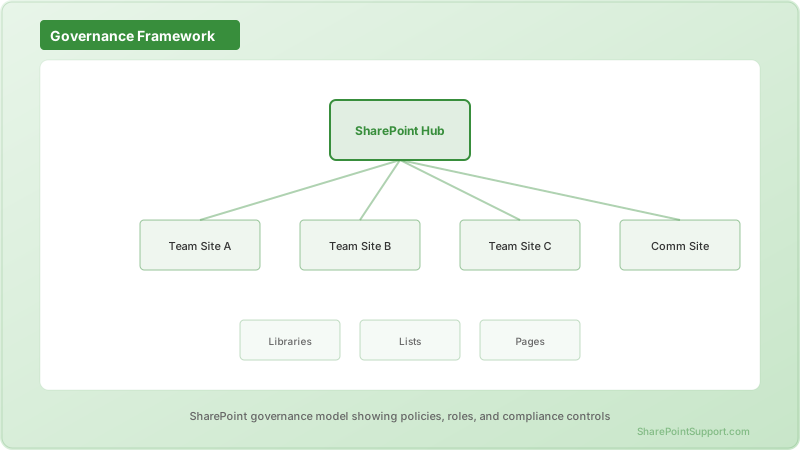
Under the hood it uses the same tenant-wide knowledge indexing that powers Microsoft 365 Copilot Business Chat, but scoped down to the site. That scoping matters — Copilot in SharePoint is a discovery amplifier, and any content the user could already find via search, they can now surface with one question. The corollary is the reason this post exists: any oversharing you had before Build 2026 is now a chat prompt away.
What changed at Build 2026
Three things landed together on May 19–20, 2026:
- Opt-out preview enabled tenant-wide. No admin toggle was required. Any tenant with even one Microsoft 365 Copilot license had the preview surface activated for every licensed user.
- Agentic building blocks in SharePoint (TechCommunity announcement) — makers can now compose no-code agents that read and write site content, which means Copilot in SharePoint is no longer only a read surface.
- New `Set-SPOTenant` cmdlet flags for scoping the preview — the ones you need to know are `KnowledgeAgentScope`, `DisableCopilotInSharePoint`, and the per-site `Set-SPOSite -DenyCopilotAccess`.
The current Microsoft guidance is Copilot in SharePoint: Get started — read it, but do not skip the governance work below because Microsoft's default answer assumes you have already labeled and DLP-covered your tenant. Most organizations have not.
Tenant vs Site Scoping — How to Decide
The scoping decision is not "on or off." It is a matrix of three axes:
| Axis | Options | When to pick each |
|------|---------|-------------------|
| Scope | Tenant-wide / site-scoped / user-scoped | Tenant-wide only when labels + DLP are done. Site-scoped is the safe default for the first 60 days. |
| Knowledge sources | Tenant / current site / specific libraries | Restrict to current site for anything holding contract, HR, or M&A content. |
| Agent write access | Read-only / read + comment / read + write | Read-only until you have Purview DLP for Copilot enforced (see the DLP post in this series). |
Our team's default recommendation for regulated tenants (healthcare, financial services, defense contractors): disable tenant-wide, allowlist by site. That is one `Set-SPOTenant` command and a list of site URLs. It buys you a governance runway of 60–90 days while you get labels and DLP in place.
The PowerShell you need
Connect first:
```powershell
Connect-SPOService -Url https://
```
Disable tenant-wide (preview off for every user, ready to allowlist per site):
```powershell
Set-SPOTenant -DisableCopilotInSharePoint $true
```
Enable on a single site (repeat for each site you want to pilot):
```powershell
Set-SPOSite -Identity https://
```
Restrict the knowledge scope to the current site only (blocks tenant-wide grounding):
```powershell
Set-SPOTenant -KnowledgeAgentScope CurrentSite
```
Verify the state:
```powershell
Get-SPOTenant | Select DisableCopilotInSharePoint, KnowledgeAgentScope
Get-SPOSite -Identity https://
```
The changes propagate in 15–60 minutes. Do not test with your admin account — it has different label rights than a rank-and-file user. Test with a licensed non-admin from a different mailbox.
5 Things to Check Before Monday
This is the checklist our consultants run for new customers on the Friday of a preview rollout. Do it in order — each step depends on the previous one being clean.
1. Run a permissions audit on your top 25 sites
Copilot in SharePoint will surface anything a user has read access to. Before you enable, know what your top 25 sites — measured by storage or unique users — actually expose. Use the SharePoint Admin Agent oversharing prompts (see the companion post on that agent) or a manual audit via the SharePoint admin center → Reports → Data access governance. Look for two red flags: sites shared with Everyone except external users and sites with more than 500 unique permission grants.
2. Confirm sensitivity labels are published and auto-applied
Copilot in SharePoint honors sensitivity labels — but only if they are applied. Content with no label is treated as unlabeled and available for grounding. Run Purview → Information Protection → Labels and confirm your top labels are published to all users. Then check Auto-labeling policies for at least one policy covering the SharePoint location. If your labels only exist in a spreadsheet, you have no protection here.
3. Ship at least one Purview DLP for Copilot policy
Purview DLP for Microsoft 365 Copilot evaluates the Copilot response before it is shown to the user. Ship one policy in audit mode now — even a simple policy that flags any response containing a US SSN, credit card, or your organization-defined SIT. That gives you telemetry from day one. We cover the full 5-policy pattern in the DLP post — start with the one you can build in 20 minutes.
4. Turn on Restricted Content Discovery for your crown-jewel sites
Restricted Content Discovery (RCD) is the switch that says "this site's content is never grounded for Copilot, even for users who could otherwise access it." For a legal hold site, an executive comp site, or an M&A workspace, RCD is not optional. Apply via SharePoint admin center → site properties → Restrict content discoverability, or via PowerShell:
```powershell
Set-SPOSite -Identity
```
RCD takes up to 24 hours to reflect in the semantic index — do this Friday, not Sunday night.
5. Verify Admin Agent visibility and audit stream
The SharePoint Admin Agent gives you a heatmap of every Copilot agent operating in your tenant, including the built-in Copilot in SharePoint chat surface. Confirm you can see it in SharePoint admin center → Copilot → Agent Access Insights and that the Purview unified audit log is capturing `CopilotInteraction` events. If audit is off or the heatmap is empty, you have no way to detect abuse.
Common Rollout Mistakes We See
- Enabling tenant-wide without labels. Guarantees an oversharing incident within 30 days.
- Trusting the "opt-out preview" name. It is on by default. The opt-out is the admin action — not the user's.
- Testing only with admin accounts. Admin accounts see labeled content differently. Test with a real end user.
- Ignoring the write side. Agentic building means Copilot can now create pages and modify list items. Read-only assumption is broken as of Build 2026.
- No rollback plan. Have the `Set-SPOTenant -DisableCopilotInSharePoint $true` command in your runbook. Practice it before you need it.
Expert help from our SharePoint consultants
Our SharePoint Support Team scopes Copilot rollouts for regulated tenants every week — the PowerShell above is the same script we run on day one. If you want help auditing permissions, staging sensitivity labels, and shipping the DLP-for-Copilot policies before you flip the tenant switch on, talk to our SharePoint consultants or contact us for a scoping call. We treat Copilot rollouts as a governance project first and a productivity project second — that order matters.
Written by the SharePoint Support Team
Senior SharePoint Consultants | 25+ Years Microsoft Ecosystem Experience
Our senior SharePoint consultants bring deep expertise spanning 500+ enterprise migrations and compliance implementations across HIPAA, SOC 2, and FedRAMP environments. We cover SharePoint Online, Microsoft 365, migrations, Copilot readiness, and large-scale governance.
Expert SharePoint Services
Frequently Asked Questions
Is Copilot in SharePoint on by default for all Microsoft 365 Copilot users?▼
Does Copilot in SharePoint respect sensitivity labels?▼
What is Restricted Content Discovery and when should we use it?▼
How do we test the preview safely before rolling it out to everyone?▼
What is the difference between Copilot in SharePoint and Microsoft 365 Copilot Business Chat?▼
How long does it take for governance changes to take effect?▼
Can Copilot in SharePoint write to sites, or is it read-only?▼
Need Expert Help?
Our SharePoint consultants are ready to help you implement these strategies in your organization.
Continue Reading in AI & Copilot
Copilot in SharePoint Just Got Live Dashboards and One-Click AI Buttons
The August 2026 release turns SharePoint lists, Excel and CSV files into dashboards that stay connected to their source data, and lets site owners drop saved Copilot prompts onto pages as buttons. Both are genuinely useful. Both need governance before you turn them loose.
AI & CopilotMicrosoft Copilot for SharePoint: The Guide for 2025
Everything you need to know about Microsoft Copilot integration with SharePoint, from setup to advanced automation strategies.
AI & CopilotSharePoint Syntex: AI-Powered Content Processing for...
Master SharePoint Syntex and Microsoft 365 content AI to automatically classify, extract, and process documents at scale across your organization.
AI & CopilotBuilding Custom SharePoint AI Agents in 2026
Learn how to build custom AI agents that interact with SharePoint using Microsoft Copilot Studio, Azure OpenAI, and the Microsoft Graph API.
AI & CopilotMicrosoft 365 Copilot for SharePoint
Step-by-step guide to deploying Microsoft 365 Copilot with SharePoint. Covers licensing, readiness assessment, permissions cleanup, sensitivity labels, and governance controls for enterprise rollout.
AI & CopilotMicrosoft Copilot for SharePoint Deployment
Step-by-step enterprise deployment guide for Microsoft Copilot in SharePoint — from licensing and prerequisites to governance, security, and measuring ROI.