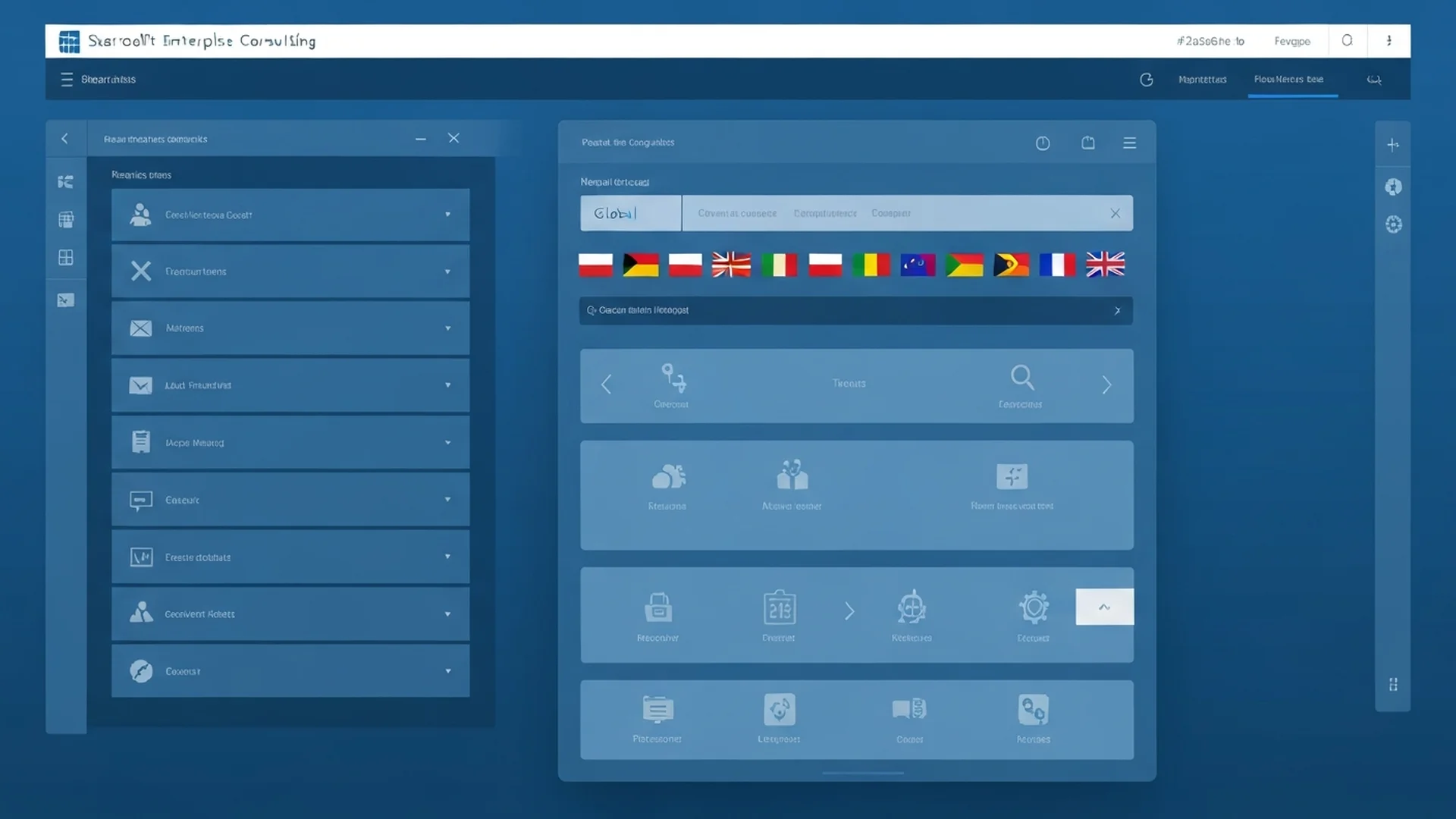
How to Create and Manage Multilingual SharePoint Sites
Multilingual SharePoint sites enable organizations to publish content in multiple languages from a single site, using SharePoint's built-in translation features to create and maintain language-specific page versions. This capability is essential for global enterprises, multinational organizations, and government agencies that must communicate with employees, citizens, or partners in their preferred languages.

In our 25+ years of deploying SharePoint for global organizations, we have implemented multilingual sites for companies operating in 20 or more languages across dozens of countries. The technical configuration is straightforward, but the governance and content management processes around multilingual publishing determine whether the implementation succeeds or becomes an unmaintainable burden.
How SharePoint Multilingual Features Work
SharePoint communication sites support multilingual pages, which allow you to create translations of site pages in any of the 50-plus languages supported by Microsoft 365. When a user visits the site, SharePoint detects their preferred language from their browser settings or Microsoft 365 profile and displays the appropriate translation if one exists. If no translation is available for the user's language, the default language version is shown.
Enabling Multilingual Features
Enable multilingual pages in Site Settings under Language Settings. Select the languages you want to support. After enabling, translators are notified when new pages are published and can create translations through a streamlined workflow.
```
Site Settings > Language Settings
Default language: English
Additional languages:
French, Spanish, German, Japanese, Portuguese, Chinese (Simplified)
```
Translation Workflow
When an author publishes or updates a page in the default language, SharePoint automatically creates translation pages for each enabled language and notifies designated translators. Translators open their assigned language page, translate the content, and publish. The translation pages are linked to the source page so SharePoint knows which version to display to each user.
Site Navigation in Multiple Languages
Multilingual sites support translated navigation labels. Each navigation link can have a different label for each enabled language. When a user views the site in French, they see the French navigation labels. When another user views the same site in Japanese, they see the Japanese labels.
Configure translated navigation labels through the site navigation editor. Select each language tab and provide the translated label for each navigation item. This applies to both the top navigation bar and the left navigation panel.
Content Design for Multilingual Sites
Page Layout Considerations
Different languages have significantly different text lengths. German text is typically 30 percent longer than English. Japanese text may be shorter but requires different line height and font rendering. Arabic and Hebrew require right-to-left layout support.
Design pages with flexible layouts that accommodate text expansion. Avoid fixed-width text containers. Use SharePoint's responsive column layouts rather than rigid pixel-based designs. Test pages in your longest language (usually German or French) to verify that content does not overflow or clip.
Image and Media Localization
Images containing text must be localized for each language. Product screenshots, diagrams with labels, and infographics all need language-specific versions. Store localized images in a structured asset library with language-based folders or metadata tags for efficient management.
Videos may require subtitles or dubbed audio tracks. Use Microsoft Stream integration with SharePoint to manage video content with multiple subtitle files.
Governance for Multilingual Content
Translation Quality Control
Establish a review process for translated content. Machine translation through Microsoft Translator can provide first drafts, but human review is essential for accuracy, tone, and cultural appropriateness. Assign native speakers as translation reviewers for each language. Create a glossary of organization-specific terms and their approved translations.
Content Synchronization
When the source page is updated, translation pages must be updated to match. SharePoint tracks whether translations are current or out of date, displaying a notification when the source page has changed since the last translation. Establish SLAs for how quickly translations must be updated after source changes. Critical announcements may require same-day translation, while informational content can tolerate longer delays.
Language Governance Policies
Define which content types require translation and which do not. Company-wide announcements may require translation into all supported languages. Department-specific content may only need translation for languages spoken in that department's regions. Technical documentation may require translation only for languages in which the product is sold.
Search Across Languages
SharePoint search indexes content in all languages and supports cross-language search to some degree. However, results are most accurate when users search in the language of the content they are looking for. Configure search result sources and refiners to include language as a filterable property so users can narrow results to their preferred language.
Hub Sites and Multilingual Architecture
For organizations with complex multilingual needs, consider using hub sites to organize content by region or language. A global intranet might use a hub structure with a corporate hub in English, regional hubs for EMEA, APAC, and Americas, and local sites within each regional hub for country-specific content. Hub site navigation can be translated to provide a consistent multilingual experience across all associated sites.
Power Automate for Translation Workflows
Automate translation notification and tracking with Power Automate flows. Create flows that notify translators when new pages are published, track translation completion status in a SharePoint list, escalate overdue translations to translation managers, and generate monthly reports on translation coverage and timeliness.
Accessibility and Multilingual Content
Multilingual sites must comply with accessibility standards in all languages. Ensure that all translated pages maintain proper heading structure, alt text on images, adequate color contrast, and keyboard navigation support. Accessibility requirements do not change by language, and translated content must meet the same WCAG 2.1 AA standards as the source content.
Common Challenges and Solutions
The most common challenge is keeping translations current as source content changes frequently. Address this by limiting the number of languages to those with genuine business need, prioritizing translation of high-traffic pages, using machine translation as a starting point for human review, and establishing clear ownership for each language.
Another challenge is managing translated content at scale. Organizations with thousands of pages and ten or more languages can generate tens of thousands of translation pages. Use Power Automate and SharePoint lists to track translation status and identify gaps.
Our SharePoint consulting team designs and implements multilingual SharePoint architectures for global organizations. We help with language planning, translation workflow design, and governance frameworks that keep multilingual content accurate and current. Contact us to discuss your multilingual requirements.
Machine Translation Integration and Quality Management
Using Microsoft Translator with SharePoint
SharePoint integrates with Microsoft Translator to provide machine translation as a starting point for human translators. When a source page is published, the machine translation can generate initial drafts for all enabled languages, reducing translation time by 40 to 60 percent for straightforward informational content.
However, machine translation quality varies significantly by language pair, content complexity, and domain-specific terminology. Technical documentation, legal content, and healthcare communications require thorough human review after machine translation. Establish quality tiers for different content types: critical communications require professional human translation, standard informational content can use machine translation with native speaker review, and temporary announcements may use machine translation with minimal review.
Translation Memory and Glossaries
Maintain an organization-specific glossary of terms and their approved translations in each supported language. Share this glossary with all translators, whether internal staff or external translation services. Common business terms, product names, department names, and compliance terminology should be translated consistently across all content. Store the glossary as a SharePoint list that translators can reference during their work.
Multilingual Search Configuration
Language-Specific Search Experiences
Configure SharePoint search to handle multilingual content effectively. Create language-specific result sources that filter results to a specific language. Set up search verticals for each major language so users can choose to search within their preferred language. Configure keyword queries that account for language-specific synonyms and variations.
For organizations with content in right-to-left languages such as Arabic and Hebrew, verify that search results display correctly with proper text direction, and that search refiners handle right-to-left text without layout issues.
Multilingual Governance at Scale
Translation SLA Management
Create a SharePoint list that tracks translation assignments, due dates, completion status, and quality review outcomes. Use Power Automate to automate the workflow: when a source page is published, create translation tasks for each language, assign to the designated translator, send reminders at defined intervals, and escalate overdue translations to the translation manager.
Define SLAs based on content priority. Emergency communications may require same-day translation. Standard news may allow three business days. Informational updates may allow five business days. Track SLA compliance monthly and report to stakeholders.
Right-to-Left Language Support
SharePoint supports right-to-left languages including Arabic, Hebrew, and Persian. When these languages are enabled, SharePoint automatically mirrors the page layout for RTL users. However, custom web parts and SPFx solutions must be tested specifically for RTL rendering. Verify that navigation menus, form layouts, and custom components display correctly when the user's preferred language is RTL.
Cost Considerations for Multilingual Deployments
Translation is expensive. Professional human translation costs between 0.10 and 0.25 dollars per word depending on the language pair and domain specialization. An organization publishing 50 news articles per month averaging 500 words each in five languages generates translation costs of 12,500 to 31,250 dollars per month. Manage costs by prioritizing translation for high-impact content, using machine translation as a starting point, limiting the number of supported languages to those with genuine business need, and establishing clear criteria for which content types require full professional translation versus machine translation with review.
Enterprise Implementation Best Practices
In our 25+ years of enterprise SharePoint consulting, we have guided hundreds of organizations through complex SharePoint initiatives spanning every industry and organizational scale. The implementation patterns that consistently deliver successful outcomes share common characteristics regardless of the specific feature or capability being deployed.
- Conduct a Thorough Requirements and Readiness Assessment: Before beginning any SharePoint implementation, invest time in understanding both the business requirements and the technical readiness of your environment. Assess your current content architecture, permission structures, integration dependencies, and user readiness. This assessment typically reveals 20 to 30 percent more complexity than initial stakeholder estimates suggest.
- Deploy in Controlled Phases with Pilot Groups: Start with a pilot group of 50 to 100 representative users from different departments and roles. Define measurable success criteria for each phase and collect structured feedback through surveys and interviews. Phased deployment reduces risk, builds organizational confidence, and generates the internal success stories that accelerate broader adoption.
- Invest in Change Management and Training: Technology implementations fail when organizations underinvest in helping people adapt to new tools and processes. Develop role-specific training that demonstrates how the new capability helps users accomplish their actual daily tasks. Create champion networks, host office hours, and celebrate early wins to build momentum across the organization.
- Automate Governance and Compliance Controls: Manual governance does not scale beyond a few dozen users or sites. Implement automated policy enforcement using Power Automate workflows, sensitivity labels, retention policies, and SharePoint administrative tools that ensure consistent compliance without creating bottlenecks or relying on individual user behavior.
- Establish Monitoring, Metrics, and Continuous Improvement: Define key performance indicators before deployment and track them systematically. Monitor adoption rates, user satisfaction, performance metrics, and business outcome improvements. Review these metrics monthly with stakeholders and use them to drive iterative improvements rather than treating the initial deployment as the finished state.
Governance and Compliance Considerations
Governance frameworks must satisfy the compliance requirements specific to your industry while remaining practical enough for daily operation. The most effective governance frameworks are those designed with regulatory compliance as a core requirement rather than an afterthought.
For HIPAA-regulated healthcare organizations, your governance framework must include specific controls for protected health information including access logging, minimum necessary access enforcement, encryption requirements, and business associate agreement tracking for any external sharing. Sensitivity labels should automatically apply encryption to documents containing PHI, and your retention policies must align with HIPAA's six-year minimum retention requirement.
Financial services organizations operating under SOC 2 need governance controls that demonstrate security, availability, processing integrity, confidentiality, and privacy of customer data. Your governance framework should map directly to SOC 2 trust service criteria, with automated evidence collection for audit readiness. SharePoint audit logs, access reviews, and change management records all serve as SOC 2 evidence.
Government agencies and contractors subject to FedRAMP or CMMC must implement governance controls satisfying federal security requirements including FIPS 140-2 compliant encryption, strict access controls based on security clearance levels, and comprehensive audit trails meeting NIST 800-53 control families.
Regardless of your specific regulatory environment, your governance framework should include data classification policies, retention schedules complying with applicable regulations, incident response procedures, and regular compliance assessments verifying controls function as designed. Working with experienced SharePoint governance consultants who understand your regulatory landscape ensures your framework addresses compliance from day one.
Ready to transform your SharePoint environment into a strategic business asset? Our specialists have guided hundreds of enterprises through successful SharePoint implementations across healthcare, financial services, government, and other regulated industries. Contact our team for a comprehensive assessment, and discover how our SharePoint consulting services can deliver the outcomes your organization needs.
Integration with Microsoft 365 Ecosystem
Multilingual SharePoint Sites does not operate in isolation. Its value multiplies when connected to the broader Microsoft 365 ecosystem, creating unified workflows that eliminate context switching and reduce manual data transfer between applications.
Microsoft Teams Integration: Embed Multilingual SharePoint Sites dashboards and document libraries as Teams tabs to create unified workspaces where conversations and structured content management coexist within a single interface. Teams channels automatically provision SharePoint document libraries, which means multilingual sharepoint sites configurations and content flow seamlessly between collaborative conversations and structured document management. Users can surface SharePoint content directly within Teams tabs, reducing the friction that typically causes adoption to stall.
Power Automate Workflows: Implement scheduled flows that perform routine Multilingual SharePoint Sites maintenance tasks including permission reports, content audits, and usage analytics without requiring manual intervention. Automated workflows triggered by SharePoint events such as document uploads, metadata changes, or approval completions eliminate repetitive manual tasks. Organizations typically automate 15 to 25 processes within the first quarter, saving an average of 8 hours per week per department. These automations also create audit trails that satisfy compliance requirements for regulated industries.
Power BI Analytics: Build executive dashboards that aggregate Multilingual SharePoint Sites metrics alongside other business KPIs, providing a holistic view of digital workplace effectiveness and investment returns. Connecting SharePoint data to Power BI dashboards provides real-time visibility into content usage patterns, adoption metrics, and operational KPIs. Decision makers gain actionable intelligence without requiring manual report generation, enabling faster response to emerging trends and potential issues.
Microsoft Purview and Compliance: Implement retention policies that automatically manage Multilingual SharePoint Sites content lifecycle, preserving business-critical records for required periods while disposing of transient content to reduce storage costs and compliance exposure. Sensitivity labels, data loss prevention policies, and retention schedules configured in Microsoft Purview extend automatically to multilingual sharepoint sites content. This unified compliance framework ensures that governance policies apply consistently across the entire Microsoft 365 environment rather than requiring separate configuration for each workload. For organizations subject to HIPAA, SOC 2, or FedRAMP requirements, this integrated approach significantly reduces compliance management overhead.
Getting Started: Next Steps
Implementing Multilingual SharePoint Sites effectively requires more than technical configuration. It demands a strategic approach grounded in your organization's specific business requirements, compliance obligations, and growth trajectory. The difference between a deployment that delivers measurable ROI and one that becomes shelfware often comes down to the quality of upfront planning and expert guidance.
Begin with a focused assessment of your current SharePoint environment. Evaluate your existing information architecture, permission structures, content lifecycle policies, and user adoption patterns. Identify gaps between your current state and the target state required for successful multilingual sharepoint sites implementation. This assessment typically takes 2 to 4 weeks and produces a prioritized roadmap that aligns technical work with business outcomes.
Our SharePoint specialists have guided organizations across healthcare, financial services, government, and education through hundreds of successful implementations. We bring deep expertise in SharePoint architecture, governance frameworks, and compliance alignment that accelerates time to value while minimizing risk.
Ready to move forward? Contact our team for a complimentary consultation. We will assess your environment, identify quick wins, and develop a phased implementation plan tailored to your organization's needs and timeline. Whether you are starting from scratch or optimizing an existing deployment, our enterprise SharePoint consultants deliver the depth and accountability enterprise SharePoint work requires.
Written by the SharePoint Support Team
Senior SharePoint Consultants | 25+ Years Microsoft Ecosystem Experience
Our senior SharePoint consultants bring deep expertise spanning 500+ enterprise migrations and compliance implementations across HIPAA, SOC 2, and FedRAMP environments. We cover SharePoint Online, Microsoft 365, migrations, Copilot readiness, and large-scale governance.
Expert SharePoint Services
Frequently Asked Questions
What makes a successful SharePoint intranet?▼
How much does a SharePoint intranet project typically cost?▼
Should we use Viva Connections or a custom SharePoint intranet?▼
How do we measure SharePoint intranet ROI?▼
What is the best way to distribute company news through SharePoint?▼
Need Expert Help?
Our SharePoint consultants are ready to help you implement these strategies in your organization.
Continue Reading in Content Management
SharePoint Alerts and Notifications Guide
Master SharePoint alerts and notifications to keep users informed about document changes, list updates, and important activities across your sites.
Content ManagementSharePoint List Views: Configuration and Optimization Guide
Master SharePoint list views to organize data effectively. Covers creating custom views, filtering, grouping, formatting, and performance optimization for large lists.
Content ManagementSharePoint Modern Pages: Design and Publishing Guide
Create engaging SharePoint modern pages with sections, web parts, and multimedia. Covers page design, templates, news publishing, and mobile optimization.
Content ManagementSharePoint Web Parts: Complete Configuration Guide
Master SharePoint web parts for building dynamic pages. Covers all major web parts, configuration options, custom SPFx development, and performance optimization.
ComplianceSharePoint Accessibility: WCAG Compliance Guide
Ensure your SharePoint sites are accessible to all users with this comprehensive WCAG compliance guide covering design principles, testing tools, and remediation strategies.
CommunicationSharePoint News Web Part: Best Practices
Master the SharePoint News web part with strategies for engaging internal communications, news layouts, audience targeting, and driving employee engagement.