How to Use the SharePoint News Web Part for Enterprise Communications
The SharePoint News web part is the primary content distribution mechanism for internal communications in modern SharePoint, enabling organizations to publish, target, and aggregate news articles across sites, hubs, and the entire tenant. When configured properly, it becomes the centerpiece of your digital workplace communications strategy, replacing email newsletters and static intranet pages with dynamic, personalized, and measurable content.

In our 25+ years of building SharePoint intranets for enterprise organizations, we have consistently found that the News web part is the single most important component for driving intranet adoption. Sites with well-configured news see three to five times higher engagement than those relying on static pages. This guide covers configuration, layout options, audience targeting, analytics, and governance.
News Web Part Configuration Options
Layout Choices
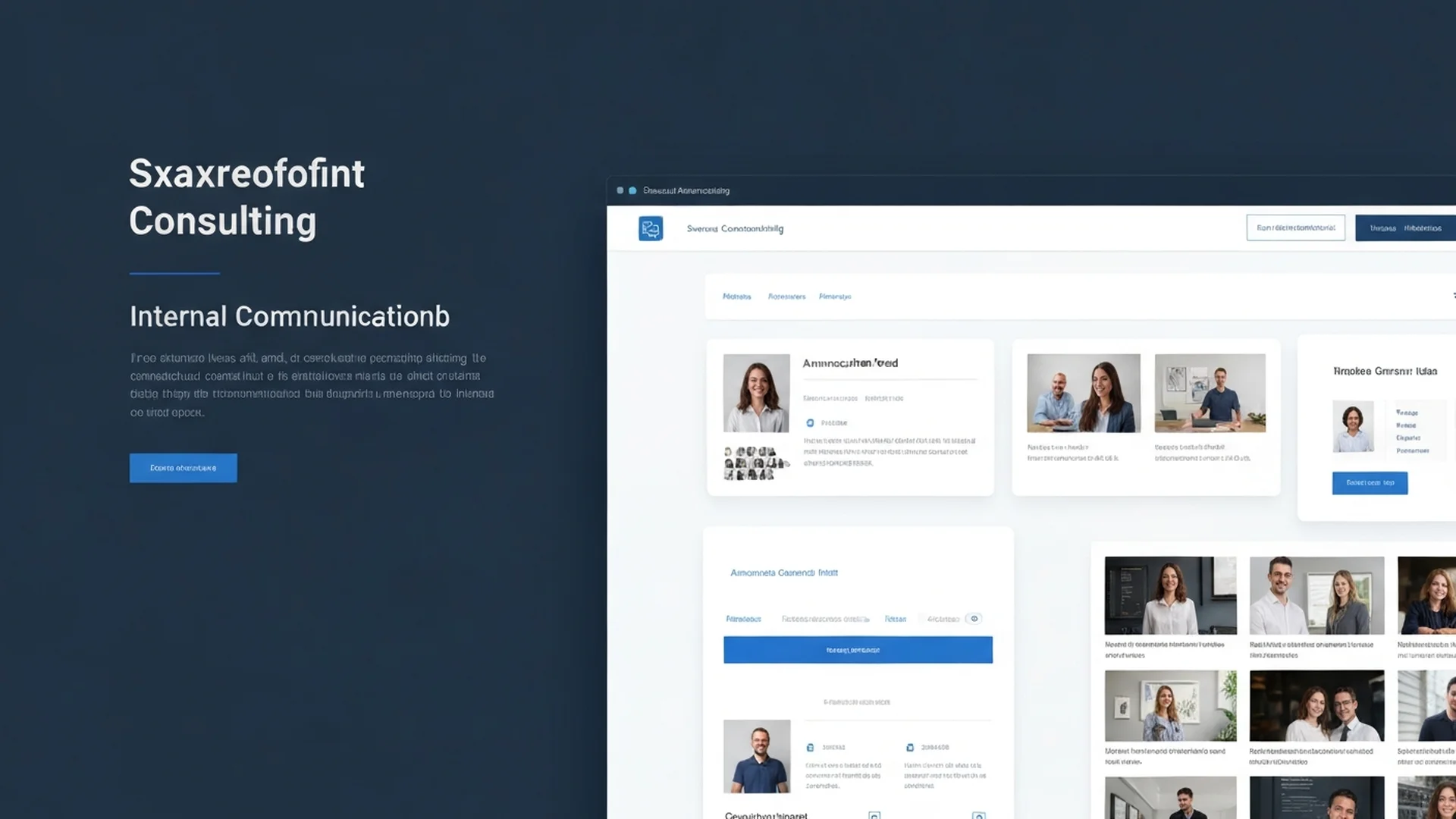
The News web part offers multiple layout options. Top Story displays a featured article with a large hero image and supporting stories below. Side-by-side shows articles in a two-column card layout. Hub News aggregates news from all sites associated with the current hub. Carousel rotates through articles in a sliding format ideal for mobile. List shows compact text-based article listings for high-density content areas.
Choose layouts based on page real estate and content priority. Homepage hero sections benefit from the Top Story layout. Secondary news sections work well with Side-by-side or List layouts. Hub-level aggregation pages should use the Hub News layout to surface content from across the organization.
Source Configuration
Configure where the news web part pulls content from. Options include the current site only, selected sites from across the tenant, all sites in the current hub, and recommended news based on the user's activity and role. For intranet homepages, combining hub news with recommended news provides a personalized experience that surfaces both organizational announcements and content relevant to the individual user.
Creating Effective News Posts
News Post Anatomy
Every news post should include a compelling title under 60 characters, a high-quality hero image that renders well at all breakpoints, an opening paragraph that answers the key question immediately, structured content with headings for scannability, a clear call to action, and relevant metadata for targeting and categorization.
Writing for the Modern Workplace
Write news posts for scanning rather than deep reading. Workers spend an average of 15 seconds on intranet articles. Lead with the most important information. Use bullet points and short paragraphs. Include visual elements like images, embedded videos, and highlighted quotes to break up text and increase engagement.
First Publish vs Page Publish
Understand the difference between creating a page and publishing it as news. All SharePoint pages can be published, but only pages explicitly published as news posts appear in news web parts and the SharePoint mobile app news feed. When creating a news post, use the dedicated News Post option rather than creating a standard page and hoping it appears in news feeds.
Audience Targeting for News
Configuring Audience Targeting
Enable audience targeting on the News web part to show different articles to different user groups. This is configured at two levels. On the web part itself, enable the audience targeting toggle. On individual news posts, set the target audience using Azure AD groups, Microsoft 365 groups, or SharePoint groups.
This capability is powerful for organizations with diverse workforces. A hospital can target clinical news to nursing staff, facilities news to operations teams, and strategic updates to leadership. A global company can target region-specific announcements to employees in those regions while keeping global announcements visible to everyone.
Organization News Sites
Designate specific sites as Organization News Sites through the SharePoint admin center. News published from these sites receives elevated priority in news feeds, the Viva Connections feed, and search results. Reserve this designation for official corporate communications to ensure important announcements reach all employees.
```powershell
# Designate an organization news site
Connect-SPOService -Url "https://tenant-admin.sharepoint.com"
Set-SPOOrgNewsSite -OrgNewsSiteUrl "https://tenant.sharepoint.com/sites/CorporateComms"
```
News Analytics and Measurement
Built-In Page Analytics
SharePoint provides page-level analytics for every news post including unique viewers, total views, average time spent, traffic sources, and device breakdown. Access analytics from the page details panel or the site usage dashboard.
Measuring Communications Effectiveness
Track these metrics to evaluate your news strategy. Reach measures the percentage of target audience that viewed the article. Engagement measures time spent and interaction rates. Timeliness measures how quickly news is consumed after publication. Coverage measures whether all departments and regions are creating and consuming news.
Use these metrics to refine your editorial calendar, identify topics that resonate with employees, and demonstrate the value of the intranet to leadership.
News Governance
Editorial Calendar
Establish an editorial calendar that plans news content across the organization. Coordinate with department communicators to ensure balanced coverage. Schedule evergreen content for slow news periods. Plan seasonal content around company events, fiscal milestones, and industry conferences.
Content Quality Standards
Define quality standards for news posts including minimum image quality and dimensions, required metadata fields, accessibility requirements for alt text and heading structure, review and approval workflow before publication, and archival policy for outdated news.
Preventing News Fatigue
Manage publication frequency to prevent news fatigue. Limit the number of news posts per site per week. Prioritize quality over quantity. Use audience targeting to ensure users only see relevant content. Consolidate multiple small updates into digest-style posts when appropriate.
Integrating News with Viva Amplify
Microsoft Viva Amplify extends the news publishing experience by enabling communicators to create content once and publish to multiple channels including SharePoint news, Outlook email, and Teams. This reduces duplication of effort while ensuring consistent messaging across channels.
News Analytics and Content Performance Measurement
Measuring news engagement is essential for understanding what content resonates with employees and optimizing your publishing strategy. SharePoint provides built-in page analytics showing unique viewers, page views, average time on page, and traffic sources. Use these metrics to identify which news topics generate the most engagement, which posting times produce the highest readership, and which formats such as video, infographic, or text perform best for different content categories.
Create a monthly news performance report in Power BI that aggregates metrics across all news sources in your hub. Track trends over time to identify seasonal patterns, measure the impact of editorial calendar changes, and demonstrate the ROI of internal communications investment to leadership. Use the data to make evidence-based decisions about content strategy, publishing frequency, and resource allocation for the communications team.
Viva Amplify and Multi-Channel Distribution
Microsoft Viva Amplify extends the SharePoint news publishing experience by enabling communicators to create content once and distribute it across multiple channels including SharePoint news, Outlook email campaigns, and Teams posts. This multi-channel approach ensures that organizational messages reach employees regardless of which platform they use most frequently. Configure Viva Amplify campaigns for major organizational announcements to maximize reach and track engagement across all distribution channels from a single dashboard.
Our SharePoint intranet design team builds news-driven communication platforms that drive employee engagement. Contact us to discuss your internal communications strategy.
Advanced News Strategies for Enterprise Intranets
News Boost for Critical Communications
SharePoint provides a News Boost feature that elevates specific articles to the top of news feeds for a defined period. Use News Boost for critical company announcements, emergency communications, policy changes, and time-sensitive information that must reach all employees quickly. Boosted news appears at the top of the Viva Connections feed and SharePoint news web parts regardless of publication date.
Configure boost duration based on content urgency. Emergency communications may need a 48-hour boost. Policy changes may need a one-week boost. Use sparingly to prevent fatigue and maintain the perceived importance of boosted content.
Video News Posts
SharePoint news supports embedded video content from Microsoft Stream, YouTube (for public content), and uploaded video files. Video news posts generate significantly higher engagement than text-only posts. Create short video updates from leadership, department spotlights, product demos, and employee recognition segments.
Optimize videos for the news feed: keep duration under three minutes, add captions for accessibility and silent viewing, use compelling thumbnail images, and include a text summary for users who prefer reading over watching.
News Digest Emails
Configure SharePoint to send periodic news digest emails that aggregate recent news posts and deliver them to targeted audiences via Outlook. This reaches users who do not regularly visit the intranet while still driving them to the SharePoint site for the full content experience. Configure digest frequency (daily, weekly) and target audiences separately for different communication needs.
Measuring and Optimizing News Performance
A/B Testing for Headlines
While SharePoint does not provide native A/B testing, you can implement informal testing by creating similar articles with different headline styles and measuring which generates higher readership. Test question-based headlines versus statement headlines, short versus detailed headlines, and headlines with numbers versus those without. Track results over time to develop a headline writing guide for your content authors.
Content Lifecycle for News
Establish a content lifecycle for news posts that includes active phase during the first two weeks when the news is fresh and featured, archival phase after one month when news moves off the front page but remains searchable, review phase at six months when content owners assess whether the news is still accurate and relevant, and retirement phase at twelve months when outdated news is either updated or unpublished.
Automate lifecycle management using retention labels that flag news posts for review at defined intervals. Create a monthly report that lists news posts approaching their review date so content owners can take action proactively.
Cross-Platform Analytics
Measure news reach across all distribution channels including SharePoint page views, Viva Connections feed impressions, news digest email open rates, and Teams message engagement for posts shared in channels. Combine these metrics to understand total audience reach and identify which distribution channel performs best for different content types and audiences.
Accessibility Compliance for News Content
All news posts must comply with WCAG 2.1 AA accessibility standards. Require alt text on all images, use heading structure correctly (H2, H3, H4 in proper hierarchy), ensure sufficient color contrast in custom styling, provide captions for embedded videos, and avoid conveying information solely through color. Include accessibility requirements in your content author training and editorial review process.
Enterprise Implementation Best Practices
In our 25+ years of enterprise SharePoint consulting, we have built hundreds of custom SharePoint solutions using the SharePoint Framework, and the development practices that produce maintainable, performant, and secure solutions differ markedly from practices that create technical debt. SPFx development requires enterprise software engineering discipline, not just functional code.
- Establish a Development Environment Standard: Every developer on your team should work with a consistent development environment including Node.js version, Yeoman generator version, and toolchain configuration. Use a shared development tenant with representative data rather than developing against production. Document your environment setup in a runbook that enables new developers to become productive within hours rather than days.
- Implement Automated Testing From the Start: SPFx solutions that ship without automated tests become unmaintainable as complexity grows. Implement unit tests for all business logic using Jest, integration tests for SharePoint API interactions using mock frameworks, and end-to-end tests for critical user workflows. Target 80 percent code coverage as a minimum standard for production deployment approval.
- Follow the PnP Patterns and Practices: The Microsoft 365 Patterns and Practices community provides battle-tested libraries, controls, and architectural patterns that dramatically reduce development time and improve solution quality. Use PnP JS for SharePoint API interactions, PnP React controls for consistent UI components, and PnP provisioning templates for environment configuration.
- Design for Performance and Accessibility: Every SPFx web part must meet performance budgets and accessibility standards. Implement lazy loading for heavy components, minimize bundle sizes through tree shaking and code splitting, and test against WCAG 2.1 AA accessibility standards. Performance and accessibility are not post-development optimizations but architectural requirements that inform design decisions.
- Implement CI/CD Pipelines for Deployment: Manual deployment of SPFx solutions to production environments is error-prone and unauditable. Implement continuous integration pipelines that run tests and quality checks on every commit, and continuous deployment pipelines that package and deploy approved solutions to the app catalog through a governed release process.
Governance and Compliance Considerations
Custom SharePoint Framework development introduces compliance obligations related to code security, data handling, application lifecycle management, and the governance of custom solutions deployed across your tenant.
For HIPAA-regulated organizations, SPFx solutions that access or display protected health information must implement the same security controls as native SharePoint components including access logging, encryption compliance, and minimum necessary data retrieval. Custom web parts must not cache PHI in browser local storage, must not transmit PHI to unauthorized external services, and must maintain audit trails for all data access operations.
Financial services organizations must subject SPFx solutions to the same change management, testing, and operational controls required for other business applications under SOC 2. Implement code review processes that include security assessment, maintain deployment audit trails, and ensure that custom solutions do not create data handling pathways that fall outside your compliance control environment.
Government organizations must ensure that custom code complies with applicable security frameworks, has undergone appropriate security review, and does not introduce dependencies on unauthorized external services or data storage locations.
Establish a custom solution governance framework that requires security code review before production deployment, mandates automated testing including security scanning, defines data handling standards for custom solutions, and assigns ongoing maintenance responsibility with defined SLAs. Include custom SharePoint solutions in your annual penetration testing scope and your regular compliance assessments. Our SharePoint development specialists build enterprise-grade solutions with security and compliance integrated into every phase of the development lifecycle.
Ready to build custom SharePoint solutions with enterprise-grade quality? Our development specialists have delivered hundreds of SPFx solutions for organizations with demanding requirements for performance, security, and maintainability. Contact our team for a development consultation, and discover how our SharePoint consulting services can extend your platform with custom capabilities.
Common Challenges and Solutions
Organizations implementing SharePoint News Web Part consistently encounter obstacles that, if left unaddressed, undermine adoption and erode stakeholder confidence. Drawing on two decades of enterprise SharePoint consulting, these are the challenges we see most frequently and the proven approaches for overcoming them.
Challenge 1: Content Sprawl and Information Architecture Degradation
Over time, SharePoint News Web Part environments accumulate redundant, outdated, and trivial content that degrades search relevance and confuses users. Without proactive content lifecycle management, the signal-to-noise ratio deteriorates and user trust in the platform erodes. The resolution requires a structured approach: establishing automated retention policies that flag content for review after defined periods of inactivity, combined with content owner accountability structures that assign clear responsibility for each site collection and library. Organizations that address this proactively report 40 to 60 percent fewer support tickets within the first 90 days of deployment. Establishing a dedicated governance committee with representatives from IT, compliance, and business stakeholders ensures ongoing alignment between technical configuration and organizational objectives.
Challenge 2: Compliance and Audit Readiness Gaps
SharePoint News Web Part implementations in regulated industries often lack the audit trail depth and policy enforcement rigor required by frameworks such as HIPAA, SOC 2, and GDPR. Retroactive compliance remediation is significantly more expensive and disruptive than building compliance into the initial design. We recommend embedding compliance requirements into the information architecture from day one. Configure Microsoft Purview retention labels, DLP policies, and audit logging before deploying content, and validate compliance posture through regular internal audits. Tracking these metrics through SharePoint health dashboards provides early warning indicators that allow administrators to intervene before minor issues become systemic problems affecting enterprise-wide productivity.
Challenge 3: Inconsistent Governance Across Business Units
When different departments implement SharePoint News Web Part independently, inconsistent naming conventions, metadata schemas, and security configurations create silos that undermine cross-functional collaboration and complicate compliance reporting. The most effective mitigation strategy involves centralizing governance policy definition while allowing controlled flexibility at the departmental level. A hub-and-spoke governance model balances enterprise consistency with departmental autonomy. Enterprises operating in regulated industries such as healthcare and financial services must pay particular attention to this challenge because compliance violations carry significant financial and reputational consequences. Regular audits conducted quarterly at minimum help organizations maintain alignment with evolving regulatory requirements and internal policy updates.
Challenge 4: Migration and Legacy Content Complexity
Organizations transitioning legacy content into SharePoint News Web Part often underestimate the complexity of mapping old structures, metadata, and permissions to modern architectures. Failed migrations erode user confidence and create parallel systems that duplicate effort. Addressing this requires conducting thorough pre-migration content audits that classify and prioritize content based on business value. Invest in automated migration tools that preserve metadata fidelity and permission integrity while providing detailed validation reports. Organizations that invest in structured change management programs achieve adoption rates 35 percent higher than those relying on organic discovery alone. Executive sponsorship combined with department-level champions creates the organizational momentum necessary for sustained success.
Integration with Microsoft 365 Ecosystem
SharePoint News Web Part does not operate in isolation. Its value multiplies when connected to the broader Microsoft 365 ecosystem, creating unified workflows that eliminate context switching and reduce manual data transfer between applications.
Microsoft Teams Integration: SharePoint News Web Part content surfaces directly in Teams channels through embedded tabs and adaptive cards, giving team members instant access to relevant documents and dashboards without leaving their collaborative workspace. Teams channels automatically provision SharePoint document libraries, which means sharepoint news web part configurations and content flow seamlessly between collaborative conversations and structured document management. Users can surface SharePoint content directly within Teams tabs, reducing the friction that typically causes adoption to stall.
Power Automate Workflows: Build approval workflows that route SharePoint News Web Part content through structured review chains, automatically notifying approvers and escalating overdue items to maintain process velocity. Automated workflows triggered by SharePoint events such as document uploads, metadata changes, or approval completions eliminate repetitive manual tasks. Organizations typically automate 15 to 25 processes within the first quarter, saving an average of 8 hours per week per department. These automations also create audit trails that satisfy compliance requirements for regulated industries.
Power BI Analytics: Visualize SharePoint News Web Part usage patterns and adoption metrics through Power BI dashboards that update automatically, giving leadership real-time visibility into platform health and user engagement. Connecting SharePoint data to Power BI dashboards provides real-time visibility into content usage patterns, adoption metrics, and operational KPIs. Decision makers gain actionable intelligence without requiring manual report generation, enabling faster response to emerging trends and potential issues.
Microsoft Purview and Compliance: Apply sensitivity labels to SharePoint News Web Part content automatically based on classification rules, ensuring that confidential and regulated information receives appropriate protection throughout its lifecycle. Sensitivity labels, data loss prevention policies, and retention schedules configured in Microsoft Purview extend automatically to sharepoint news web part content. This unified compliance framework ensures that governance policies apply consistently across the entire Microsoft 365 environment rather than requiring separate configuration for each workload. For organizations subject to HIPAA, SOC 2, or FedRAMP requirements, this integrated approach significantly reduces compliance management overhead.
Getting Started: Next Steps
Implementing SharePoint News Web Part effectively requires more than technical configuration. It demands a strategic approach grounded in your organization's specific business requirements, compliance obligations, and growth trajectory. The difference between a deployment that delivers measurable ROI and one that becomes shelfware often comes down to the quality of upfront planning and expert guidance.
Begin with a focused assessment of your current SharePoint environment. Evaluate your existing information architecture, permission structures, content lifecycle policies, and user adoption patterns. Identify gaps between your current state and the target state required for successful sharepoint news web part implementation. This assessment typically takes 2 to 4 weeks and produces a prioritized roadmap that aligns technical work with business outcomes.
Our SharePoint specialists have guided organizations across healthcare, financial services, government, and education through hundreds of successful implementations. We bring deep expertise in SharePoint architecture, governance frameworks, and compliance alignment that accelerates time to value while minimizing risk.
Ready to move forward? Contact our team for a complimentary consultation. We will assess your environment, identify quick wins, and develop a phased implementation plan tailored to your organization's needs and timeline. Whether you are starting from scratch or optimizing an existing deployment, our enterprise SharePoint consultants deliver the depth and accountability enterprise SharePoint work requires.
Written by the SharePoint Support Team
Senior SharePoint Consultants | 25+ Years Microsoft Ecosystem Experience
Our senior SharePoint consultants bring deep expertise spanning 500+ enterprise migrations and compliance implementations across HIPAA, SOC 2, and FedRAMP environments. We cover SharePoint Online, Microsoft 365, migrations, Copilot readiness, and large-scale governance.
Expert SharePoint Services
Frequently Asked Questions
How does SharePoint integrate with Microsoft Teams?▼
What are the benefits of integrating Power BI with SharePoint?▼
How do we manage permissions across integrated Microsoft 365 services?▼
Can SharePoint integrate with non-Microsoft applications?▼
How do we evaluate SharePoint against competing platforms?▼
Need Expert Help?
Our SharePoint consultants are ready to help you implement these strategies in your organization.
Continue Reading in Communication
SharePoint Pages vs Sites: Understanding the Difference
Clarify the distinction between SharePoint pages and sites, learn when to use each, and understand how they work together to create effective information architecture.
IntegrationMicrosoft Planner + SharePoint: Task Management
Learn how to integrate Microsoft Planner with SharePoint for seamless task management, project tracking, and team collaboration within your digital workplace.
AdministrationSharePoint Storage Management: M365 Guide
Master SharePoint storage management with strategies for monitoring usage, optimizing quotas, archiving content, and planning capacity for your Microsoft 365 tenant.
ArchitectureSharePoint Site Collections: Best Practices
Understand SharePoint site collection architecture with best practices for planning, creating, and managing site collections in your Microsoft 365 environment.
FeaturesAudience Targeting in SharePoint: Personalized Content
Learn how to implement audience targeting in SharePoint to deliver personalized content experiences based on user groups, roles, and attributes.
AutomationBuilding Approval Workflows in SharePoint
Learn how to create effective approval workflows in SharePoint using Power Automate, from simple single-approver flows to complex multi-stage approval processes.