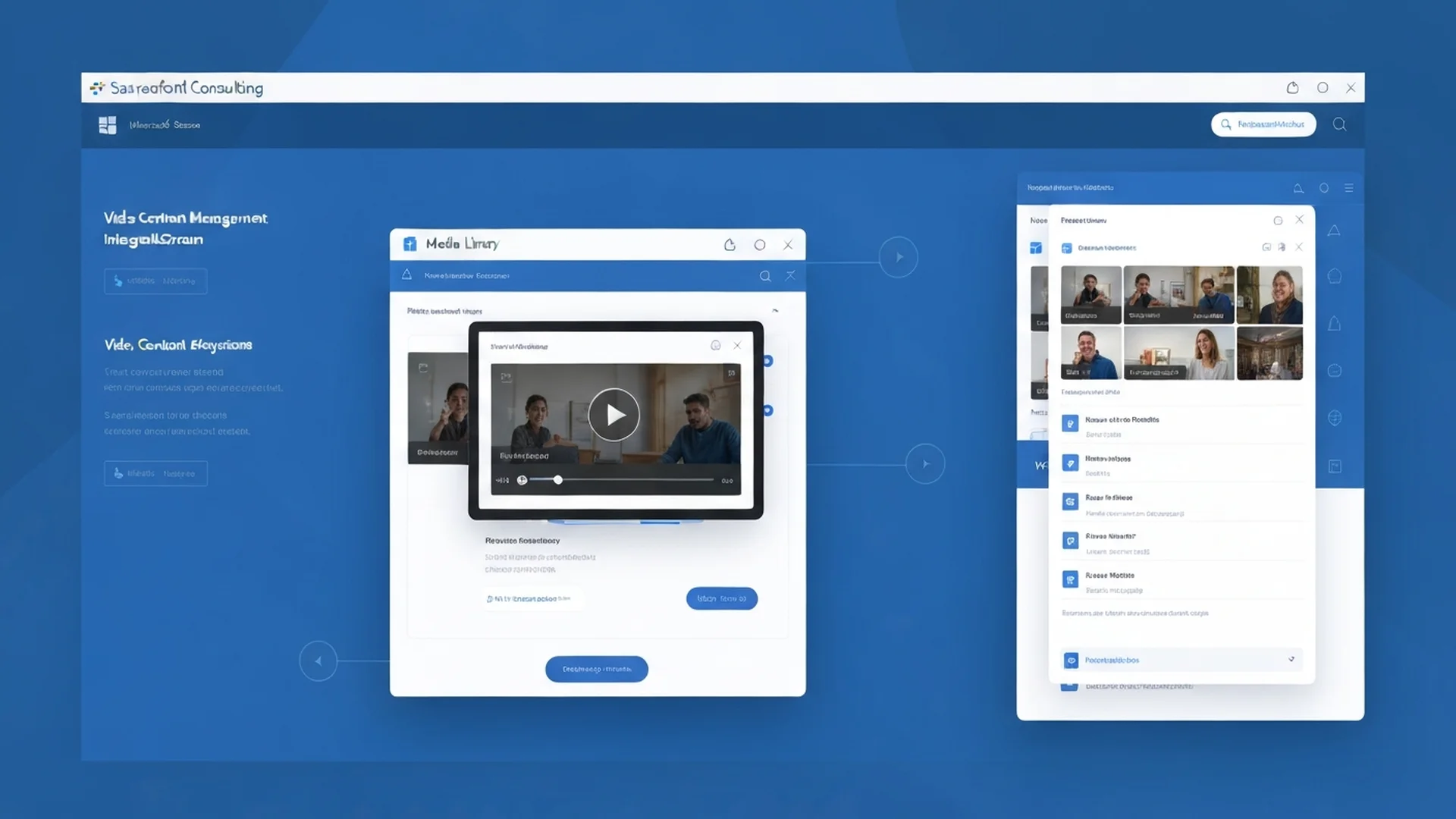
The Stream Evolution
Microsoft Stream has undergone a fundamental transformation. The "new" Stream, built on SharePoint, replaces the classic standalone Stream service with a deeply integrated video experience. Videos now live in SharePoint and OneDrive, inheriting all the governance, security, and collaboration capabilities of these platforms.

Understanding Stream on SharePoint
Architecture Changes
Classic Stream (Deprecated)
- Standalone video platform
- Separate storage and permissions
- Limited integration options
- Office 365 Groups-based security
Stream on SharePoint (Current)
- Videos stored in SharePoint/OneDrive
- SharePoint permissions and sharing
- Full search integration
- Compliance and governance alignment
Where Videos Live
OneDrive
- Personal video recordings
- Meeting recordings (by default)
- Individual uploads
- Personal stream page
SharePoint
- Team and project videos
- Organizational content
- Training materials
- Corporate communications
Video Player Experience
The Stream web part provides:
- Responsive playback
- Transcript display
- Playback speed control
- Closed captions
- Picture-in-picture
- Keyboard navigation
Managing Video Content
Uploading Videos
Direct Upload to SharePoint
- Navigate to document library
- Upload video file directly
- Stream processes automatically
- Thumbnails generate within minutes
Supported Formats
- MP4 (recommended)
- MOV, WMV, AVI
- MKV, FLV, WebM
- Maximum 250GB file size
Processing Pipeline
After upload, Stream:
- Transcodes for adaptive streaming
- Generates thumbnail options
- Creates automatic transcripts
- Enables search indexing
Organizing Videos
Library Structure Options
Flat with Metadata
- All videos in one library
- Rich metadata for filtering
- Content types for categorization
- Views for different audiences
Folder-Based
- Organize by topic/department
- Familiar navigation
- Simpler permissions
- Limited scalability
Hybrid Approach
- Top-level folders for major categories
- Metadata for fine-grained filtering
- Best of both approaches
Metadata Framework
Create useful video metadata:
- Video Type (training, meeting, event, announcement)
- Department/Team
- Topic/Category
- Audience (all employees, managers, executives)
- Language
- Duration range
Video Pages and Portals
Video Landing Pages
Create dedicated video experiences:
- Create communication site or page
- Add Stream web parts
- Configure filters and views
- Design navigation
Video Web Part Options
- Single video embed
- Video gallery/grid
- Channel view
- Playlist display
Example Portal Structure
```
Video Hub (Communication Site)
├── Home - Featured videos, latest uploads
├── Training - Learning content by topic
├── Events - Recorded company events
├── Departments - Department-specific content
└── Search - Full video search experience
```
Meeting Recordings
Default Recording Location
Teams Meeting Recordings
- Channel meetings: Channel SharePoint folder
- Non-channel meetings: Organizer's OneDrive
- Automatic transcript alongside video
Managing Recording Storage
```powershell
# Set default recording expiration (admin)
Set-CsTeamsMeetingPolicy -Identity Global -MeetingRecordingExpirationDays 60
```
Recording Governance
Retention Policies
Apply Microsoft 365 retention:
- Auto-delete after period
- Preserve for compliance
- Different policies by content type
Sharing Controls
- Default sharing settings
- External sharing restrictions
- Link expiration enforcement
- Download prevention options
Compliance Considerations
- eDiscovery includes recordings
- Legal holds apply
- DLP policies scan transcripts
- Audit logging enabled
Transcription and Captions
Automatic Transcription
Stream generates transcripts automatically:
- Multiple language support
- Speaker identification
- Timestamp alignment
- Editable after generation
Enabling Transcription
Tenant-level setting:
```powershell
Set-CsTeamsMeetingPolicy -Identity Global -AllowTranscription $true
```
Caption Management
Auto-Generated Captions
- Created from transcript
- Synchronized with video
- Multiple language options
- Quality varies by audio
Uploading Caption Files
For professional captions:
- Generate .vtt or .srt file
- Upload to same location as video
- Name: videoname.language.vtt
- Stream detects automatically
Transcript Search
Transcripts enable powerful search:
- Find videos by spoken content
- Jump to specific moments
- Search across all videos
- Integrated with SharePoint search
Security and Compliance
Permission Inheritance
Videos follow SharePoint permissions:
- Library-level access
- Folder permissions
- Individual file sharing
- External guest access
Best Practices
- Use groups for access management
- Audit permissions regularly
- Implement least-privilege
- Consider sensitivity labels
External Sharing
Sharing Options
- Anyone with link (if enabled)
- People in organization
- Specific people (including guests)
- Existing access only
External Sharing Controls
```powershell
# Restrict video sharing at site level
Set-SPOSite -Identity https://contoso.sharepoint.com/sites/videos -SharingCapability ExternalUserSharingOnly
```
Data Loss Prevention
DLP for Video
- Policies scan video metadata
- Transcripts checked for sensitive content
- Automatic classification options
- Block sharing of sensitive videos
Retention and Deletion
Retention Labels
Apply retention to videos:
- Auto-apply based on metadata
- Manual label application
- Regulatory retention periods
- Disposition reviews
Deletion Handling
- Deleted videos go to recycle bin
- 93-day recovery window
- Second-stage recycle bin
- Permanent deletion after retention
Integration Scenarios
SharePoint Pages
Embedding Videos
- Edit SharePoint page
- Add Stream web part
- Select video from SharePoint/OneDrive
- Configure display options
Web Part Settings
- Autoplay (use sparingly)
- Show/hide controls
- Start time offset
- Loop playback
Microsoft Teams
Videos in Teams
- Share from Files tab
- Embed in channel tabs
- Include in wiki pages
- Post in conversations
Stream Tab
Add dedicated video tab:
- Add tab in channel
- Select Stream
- Configure video source
- Name the tab
Viva Engage (Yammer)
Video in Communities
- Upload directly to posts
- Share from SharePoint
- Embed in announcements
- Include in knowledge articles
PowerPoint and Word
Inserting Videos
- Insert > Video > Online Video
- Paste SharePoint video URL
- Video plays within document
- Requires network access
Analytics and Insights
Video Analytics
Available Metrics
- View count
- Unique viewers
- Average watch time
- Completion rate
- Peak viewing times
Accessing Analytics
- Open video details in SharePoint
- View analytics section
- Export for reporting
- Compare across videos
Organization-Wide Reporting
Admin Analytics
Track video usage across tenant:
- Total video storage
- Active video users
- Trending content
- Department usage
Migration from Classic Stream
Migration Timeline
Microsoft is migrating classic Stream content:
- Automatic migration in progress
- Content moves to OneDrive/SharePoint
- Permissions preserved where possible
- URLs will redirect
Preparing for Migration
Inventory Classic Content
- List all videos
- Document permissions
- Note custom channels
- Identify embedded videos
Post-Migration Tasks
- Verify content accessibility
- Update embedded links
- Recreate custom portals
- Train users on new location
Conclusion
Stream on SharePoint unifies video management with your broader content strategy. By leveraging SharePoint's governance capabilities, organizations can manage video content with the same rigor as documents while providing users with modern, integrated video experiences.
Ready to optimize your video content strategy? Contact our content management specialists for Stream implementation and migration services.
Enterprise Implementation Best Practices
In our 25+ years managing enterprise SharePoint environments, the transition from classic Stream to Stream on SharePoint has been a significant governance event for organizations with large video content libraries. Proper implementation ensures video content receives the same management rigor as documents.
- Establish Video Content Governance Policies: Create explicit governance policies for video content that address storage quotas per department, required metadata for all uploaded videos including title, description, department, content type, and expiration date. Define who can upload videos to shared libraries versus personal OneDrive locations. Establish video quality standards and maximum file sizes to prevent storage bloat from uncompressed recordings.
- Design a Video Library Architecture: Create purpose-built SharePoint document libraries for different video categories such as training videos, meeting recordings, marketing content, and executive communications. Apply managed metadata to video libraries enabling filtered views and search refiners. Configure retention policies per library type with training videos retained for 3 years, meeting recordings for 1 year, and marketing content reviewed annually.
- Configure Meeting Recording Policies Centrally: Teams meeting recordings stored in SharePoint and OneDrive can consume enormous storage volumes. Configure Teams meeting policies that control who can record, where recordings are stored, and automatic expiration timeframes. For most organizations, a 60 to 90 day automatic expiration for routine meeting recordings with exceptions for formal governance meetings and client presentations balances storage costs with accessibility needs.
- Enable Transcription and Captioning for Accessibility: Configure automatic transcription for all meeting recordings and encourage manual transcript review for training videos and executive communications. Transcripts serve dual purposes by satisfying accessibility requirements under ADA and Section 508 while also making video content searchable through SharePoint search. Users can find specific moments in videos by searching for spoken words within transcripts through SharePoint support configurations.
- Implement Video Analytics for Content Strategy: Use Stream and SharePoint analytics to understand which videos drive engagement and which are ignored. Track view counts, completion rates, and average watch times to identify content that resonates with employees. Use these insights to guide your video content strategy producing more of what employees watch and retiring content that fails to engage. Share analytics dashboards with content owners to create accountability for video quality and relevance.
Governance and Compliance Considerations
Video content in SharePoint carries the same compliance obligations as any other content type but introduces additional considerations around recording consent, transcription accuracy, and storage management that organizations must address.
HIPAA-regulated organizations must exercise particular caution with meeting recordings that may capture discussions of protected health information. Configure Teams meeting policies to display recording indicators prominently and ensure all participants are aware that recording is active. Implement DLP policies that detect healthcare-related terms in meeting transcripts and apply appropriate sensitivity labels automatically. Store recordings containing PHI discussions in designated SharePoint libraries with HIPAA-compliant access controls and retention policies.
Financial services organizations subject to SEC and FINRA supervision requirements must determine whether meeting recordings constitute business records requiring retention. Client-facing meetings, investment discussions, and compliance reviews likely fall under recordkeeping requirements. Configure retention policies that preserve these recordings for the required retention period and include them in your eDiscovery scope for litigation readiness.
Recording consent requirements vary by jurisdiction and organizations with employees or customers in multiple states or countries must comply with the most restrictive applicable consent law. Two-party consent jurisdictions require explicit consent from all recording participants. Configure Teams to display consent notifications and require acknowledgment before recording begins. Document your consent procedures and maintain evidence of compliance for regulatory audits. Our SharePoint consulting team designs video governance frameworks that satisfy multi-jurisdictional consent requirements.
Measuring Success and ROI
Video content management ROI is measured through storage efficiency, content engagement, and compliance readiness metrics that demonstrate your video governance framework is delivering value.
Track total video storage consumption trending against allocated quotas. Monitor average video view count targeting consistent engagement with training and communication content. Measure transcript availability rate targeting 100 percent for all meeting recordings and published videos. Track compliance policy coverage for video libraries verifying that retention and sensitivity labels are applied to 100 percent of video content. Monitor meeting recording expiration policy effectiveness measured by storage recovered through automatic expiration. Survey employees quarterly on video content discoverability and usefulness targeting satisfaction scores of 4.0 or higher.
Transform your enterprise video strategy with expert content management. Contact our team for a video governance assessment and discover how our SharePoint consulting services can bring order to your video content across Microsoft 365.
Common Challenges and Solutions
Organizations implementing Microsoft Stream + SharePoint consistently encounter obstacles that, if left unaddressed, undermine adoption and erode stakeholder confidence. Drawing on two decades of enterprise SharePoint consulting, these are the challenges we see most frequently and the proven approaches for overcoming them.
Challenge 1: Inconsistent Governance Across Business Units
When different departments implement Microsoft Stream + SharePoint independently, inconsistent naming conventions, metadata schemas, and security configurations create silos that undermine cross-functional collaboration and complicate compliance reporting. The resolution requires a structured approach: centralizing governance policy definition while allowing controlled flexibility at the departmental level. A hub-and-spoke governance model balances enterprise consistency with departmental autonomy. Organizations that address this proactively report 40 to 60 percent fewer support tickets within the first 90 days of deployment. Establishing a dedicated governance committee with representatives from IT, compliance, and business stakeholders ensures ongoing alignment between technical configuration and organizational objectives.
Challenge 2: Migration and Legacy Content Complexity
Organizations transitioning legacy content into Microsoft Stream + SharePoint often underestimate the complexity of mapping old structures, metadata, and permissions to modern architectures. Failed migrations erode user confidence and create parallel systems that duplicate effort. We recommend conducting thorough pre-migration content audits that classify and prioritize content based on business value. Invest in automated migration tools that preserve metadata fidelity and permission integrity while providing detailed validation reports. Tracking these metrics through SharePoint health dashboards provides early warning indicators that allow administrators to intervene before minor issues become systemic problems affecting enterprise-wide productivity.
Challenge 3: Permission and Access Sprawl
As Microsoft Stream + SharePoint scales across departments, permission structures inevitably become more complex. Without active governance, permission inheritance breaks down, sharing links proliferate, and sensitive content becomes accessible to unintended audiences. The most effective mitigation strategy involves implementing quarterly access reviews using the SharePoint Admin Center combined with automated reports that flag permission anomalies. Establish a principle of least privilege as the default and require documented justification for elevated access grants. Enterprises operating in regulated industries such as healthcare and financial services must pay particular attention to this challenge because compliance violations carry significant financial and reputational consequences. Regular audits conducted quarterly at minimum help organizations maintain alignment with evolving regulatory requirements and internal policy updates.
Challenge 4: Performance and Scalability Bottlenecks
Large-scale Microsoft Stream + SharePoint deployments frequently encounter performance issues as content volumes grow beyond initial design parameters. Large lists, deeply nested folder structures, and poorly optimized custom solutions contribute to slow page loads and frustrated users. Addressing this requires conducting regular performance audits that identify bottlenecks before they impact user experience. Implement list view thresholds, indexed columns, and pagination strategies that maintain responsive performance at enterprise scale. Organizations that invest in structured change management programs achieve adoption rates 35 percent higher than those relying on organic discovery alone. Executive sponsorship combined with department-level champions creates the organizational momentum necessary for sustained success.
Integration with Microsoft 365 Ecosystem
Microsoft Stream + SharePoint does not operate in isolation. Its value multiplies when connected to the broader Microsoft 365 ecosystem, creating unified workflows that eliminate context switching and reduce manual data transfer between applications.
Microsoft Teams Integration: Microsoft Stream + SharePoint content surfaces directly in Teams channels through embedded tabs and adaptive cards, giving team members instant access to relevant documents and dashboards without leaving their collaborative workspace. Teams channels automatically provision SharePoint document libraries, which means microsoft stream + sharepoint configurations and content flow seamlessly between collaborative conversations and structured document management. Users can surface SharePoint content directly within Teams tabs, reducing the friction that typically causes adoption to stall.
Power Automate Workflows: Build approval workflows that route Microsoft Stream + SharePoint content through structured review chains, automatically notifying approvers and escalating overdue items to maintain process velocity. Automated workflows triggered by SharePoint events such as document uploads, metadata changes, or approval completions eliminate repetitive manual tasks. Organizations typically automate 15 to 25 processes within the first quarter, saving an average of 8 hours per week per department. These automations also create audit trails that satisfy compliance requirements for regulated industries.
Power BI Analytics: Visualize Microsoft Stream + SharePoint usage patterns and adoption metrics through Power BI dashboards that update automatically, giving leadership real-time visibility into platform health and user engagement. Connecting SharePoint data to Power BI dashboards provides real-time visibility into content usage patterns, adoption metrics, and operational KPIs. Decision makers gain actionable intelligence without requiring manual report generation, enabling faster response to emerging trends and potential issues.
Microsoft Purview and Compliance: Apply sensitivity labels to Microsoft Stream + SharePoint content automatically based on classification rules, ensuring that confidential and regulated information receives appropriate protection throughout its lifecycle. Sensitivity labels, data loss prevention policies, and retention schedules configured in Microsoft Purview extend automatically to microsoft stream + sharepoint content. This unified compliance framework ensures that governance policies apply consistently across the entire Microsoft 365 environment rather than requiring separate configuration for each workload. For organizations subject to HIPAA, SOC 2, or FedRAMP requirements, this integrated approach significantly reduces compliance management overhead.
Getting Started: Next Steps
Implementing Microsoft Stream + SharePoint effectively requires more than technical configuration. It demands a strategic approach grounded in your organization's specific business requirements, compliance obligations, and growth trajectory. The difference between a deployment that delivers measurable ROI and one that becomes shelfware often comes down to the quality of upfront planning and expert guidance.
Begin with a focused assessment of your current SharePoint environment. Evaluate your existing information architecture, permission structures, content lifecycle policies, and user adoption patterns. Identify gaps between your current state and the target state required for successful microsoft stream + sharepoint implementation. This assessment typically takes 2 to 4 weeks and produces a prioritized roadmap that aligns technical work with business outcomes.
Our SharePoint specialists have guided organizations across healthcare, financial services, government, and education through hundreds of successful implementations. We bring deep expertise in SharePoint architecture, governance frameworks, and compliance alignment that accelerates time to value while minimizing risk.
Ready to move forward? Contact our team for a complimentary consultation. We will assess your environment, identify quick wins, and develop a phased implementation plan tailored to your organization's needs and timeline. Whether you are starting from scratch or optimizing an existing deployment, our enterprise SharePoint consultants deliver the depth and accountability enterprise SharePoint work requires.
Written by the SharePoint Support Team
Senior SharePoint Consultants | 25+ Years Microsoft Ecosystem Experience
Our senior SharePoint consultants bring deep expertise spanning 500+ enterprise migrations and compliance implementations across HIPAA, SOC 2, and FedRAMP environments. We cover SharePoint Online, Microsoft 365, migrations, Copilot readiness, and large-scale governance.
Expert SharePoint Services
Frequently Asked Questions
How does SharePoint integrate with Microsoft Teams?▼
What are the benefits of integrating Power BI with SharePoint?▼
How do we manage permissions across integrated Microsoft 365 services?▼
Can SharePoint integrate with non-Microsoft applications?▼
Need Expert Help?
Our SharePoint consultants are ready to help you implement these strategies in your organization.
Continue Reading in Integration
Microsoft Planner + SharePoint: Task Management
Learn how to integrate Microsoft Planner with SharePoint for seamless task management, project tracking, and team collaboration within your digital workplace.
IntegrationMicrosoft Forms + SharePoint: Data Collection Guide
Integrate Microsoft Forms with SharePoint for powerful data collection workflows. Learn form creation, response routing to lists, Power Automate integration, and enterprise survey strategies.
IntegrationFederated Copilot Connectors: Live Intranet Data
Federated Copilot Connectors went GA at Build 2026. They query third-party systems live at prompt time — no indexing, no data residency headaches. Here are the top three intranet use cases and the setup steps.
IntegrationSharePoint and Microsoft Teams Integration: The Guide
Master the integration between SharePoint and Teams to create seamless collaboration experiences.
IntegrationPower BI + SharePoint: Embedded Analytics Guide
Embed Power BI reports in SharePoint for seamless data visualization. Learn embedding methods, security considerations, and best practices.
IntegrationMicrosoft Loop and SharePoint: Future of Collaboration
Explore how Microsoft Loop components integrate with SharePoint to create fluid, real-time collaboration experiences across the Microsoft 365 ecosystem.