SharePoint Hub Sites: Complete Implementation Guide for Enterprise
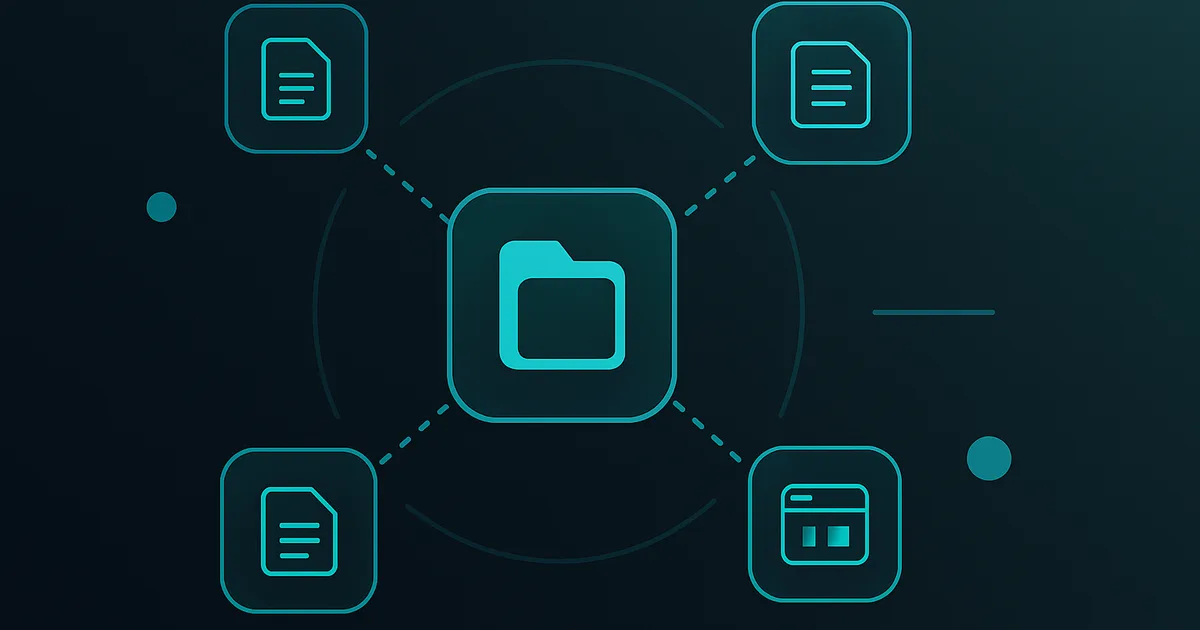
Hub sites are SharePoint Online's answer to the age-old intranet challenge: how do you give individual departments autonomy while maintaining a unified company-wide experience? Hub sites solve this by connecting related sites under shared navigation, search, and branding — without merging them or restricting site owner autonomy.

This guide covers hub site architecture from design to deployment for enterprise environments.
---
What Hub Sites Actually Do
Hub sites provide three core capabilities to their associated sites:
1. Unified Navigation
Sites associated with a hub inherit the hub site's navigation bar at the top. This creates a consistent navigation experience across all associated sites — users always know where they are and how to navigate to related content.
2. Shared Search
When a user searches on any hub-associated site, results include content from all sites associated with the hub. This "rolled-up" search is the most powerful hub benefit — users don't need to know which specific site contains the document they're looking for.
3. Shared Branding (Optional)
Hub sites can apply a shared theme (colors, fonts) to associated sites. Organizations can choose whether to enforce consistent branding or allow sites to customize within the hub.
---
Hub Site Architecture Patterns
Pattern 1: Single Hub (Flat)
All sites associated with one company hub.
Best for: Organizations under 2,000 users, single-division companies, minimal content complexity.
Limitation: All search results from all sites roll up to one pool. In large organizations, this creates noise.
Pattern 2: Hub of Hubs (Hierarchical)
Multiple divisional hubs, each associated with a parent company hub.
Structure:
- Corporate Hub (hub of hubs)
- Finance Division Hub → Accounts Payable, Financial Planning, Treasury
- Operations Division Hub → Manufacturing, Supply Chain, QA
- HR Division Hub → Talent Acquisition, Benefits, L&D
Best for: Large enterprises (5,000+ users), multi-division organizations with distinct business units.
Benefit: Users on Finance sites search Finance content by default. Users on the Corporate Hub can search across everything.
Pattern 3: Geographic Hub Model
Best for: Global organizations where geography is a primary content organizing principle.
Structure:
- Global Hub → North America Hub, EMEA Hub, APAC Hub
- Each regional hub → Country-level or business unit sites
---
Hub Site vs. Subsites: Critical Distinction
Hub sites replace the old "subsite" model. Modern SharePoint best practice:
- No subsites — subsites are a legacy pattern from SharePoint 2010-2016
- Flat site architecture — all sites at the same level
- Hub association — connects sites logically without parent-child nesting
Hub sites do NOT extend benefits to subsites. If you have subsites under a hub-associated site, those subsites are not included in hub search or navigation.
---
Planning Your Hub Architecture
Step 1: Map content domains
Identify primary content domains — distinct areas users would naturally search separately: Corporate, Finance, HR, IT, Operations, Legal, Sales, Projects.
Step 2: Map audience relationships
All employees read corporate → Company Hub. Finance employees primarily need Finance → Finance Hub. Projects teams need project content + company policies → Projects Hub with inherited company navigation.
Step 3: Define hierarchy
- Company Hub: Corporate news, all-employee policies
- Divisional Hubs: Business unit content
- Department Sites: Team-specific content, associated to Division Hubs
Step 4: Design navigation
Each hub needs 5-8 top-level navigation items. Action-oriented labels ("Find a Policy" not "Policies"). Links to sites, not individual pages.
---
Registering a Hub Site
SharePoint Admin Center
- Active Sites → select site → "..." menu → Hub → Register as hub site
- Provide hub name
- (Optional) Add approvers for site association requests
PowerShell
```powershell
Connect-SPOService -Url "https://yourtenant-admin.sharepoint.com"
Register-SPOHubSite -Site "https://yourtenant.sharepoint.com/sites/corporatehub" `
-Principals @("[email protected]")
Get-SPOHubSite -Identity "https://yourtenant.sharepoint.com/sites/corporatehub"
```
---
Associating Sites with a Hub
User-Initiated Association
Site Settings → Hub site information → Choose a hub → Request association (goes to hub approvers if approval required)
Admin-Forced Association
```powershell
Add-SPOHubSiteAssociation `
-Site "https://yourtenant.sharepoint.com/sites/finance-ap" `
-HubSite "https://yourtenant.sharepoint.com/sites/finance-hub"
```
Bulk Association
```powershell
$financeSites = Get-SPOSite | Where-Object { $_.Url -like "*/finance-*" }
foreach ($site in $financeSites) {
Add-SPOHubSiteAssociation `
-Site $site.Url `
-HubSite "https://yourtenant.sharepoint.com/sites/finance-hub"
}
```
---
Hub Search Behavior
Hub search is the feature that makes hub sites truly valuable for end users.
When a user searches from any hub-associated site:
- Default scope: Current site + all associated hub sites
- Users can change scope: "This site", "This hub", or "All of SharePoint"
Hub search works best when:
- Content has consistent metadata (managed metadata, content types)
- Pages have descriptive titles and summaries
- Documents have rich metadata beyond just file name and date
Promoted Results (Best Bets): Configure in SharePoint Admin Center → Search → Query rules:
- "IT Help Desk" → IT Portal home page
- "Expense Report" → Finance form library
- "PTO Policy" → HR policy library
---
Hub of Hubs: Enterprise Configuration
For large enterprises, hub sites can themselves be associated with another hub:
Setup:
- Register Company Hub as a hub site
- Register Division Hub as a hub site
- Associate Division Hub with Company Hub
- Associate department sites with their Division Hub
Search behavior:
- Department site search: Division-level content
- Division Hub search: All division sites
- Company Hub search: All divisions
Navigation inheritance:
- Company Hub navigation → appears on Division Hub pages
- Division Hub navigation → appears on department site pages
---
Common Hub Site Mistakes
- Too many hub sites — creates navigation fragmentation. Create hubs for meaningful content domains only.
- Not configuring hub navigation — a hub without navigation provides only search benefit.
- Associating unrelated sites — pollutes hub search with irrelevant results.
- No association approval — without approval control, any site owner can associate with any hub.
- Using subsites under hub sites — hub benefits don't extend to subsites.
---
Conclusion
Hub sites are the foundation of a scalable SharePoint Online intranet. Designing your hub architecture before building saves months of remediation. Our architects have designed hub architectures for organizations from 500 to 100,000 users. Contact us for a free architecture consultation.
---
Deep-Dive: Hub Site Edge Cases and Advanced Scenarios
Beyond the core patterns, enterprise deployments consistently encounter edge cases that catch teams off guard. The scenarios below cover the situations we see most often during SharePoint consulting engagements and the resolutions that hold up in production.
Multi-Geo Tenants and Hub Geography
Organizations using Microsoft 365 Multi-Geo store SharePoint content in specific geographic regions for data residency compliance. Hub sites span geographies — a hub in North America can have associated sites in EMEA, APAC, and LATAM. Critical rules:
- Search is geo-restricted by default. A user in EMEA searching from a hub-associated EMEA site sees only EMEA-hosted results unless you explicitly enable cross-geo search.
- Data residency overrides hub search. Content stored in a geo is never copied or indexed outside that geo without explicit tenant configuration.
- Hub navigation is global. Navigation links work regardless of geography; users click through to sites in other regions freely (subject to permissions).
- Plan hub topology around compliance boundaries, not just geography. A healthcare organization subject to both GDPR and HIPAA may need a hub per regulatory zone, not per region.
Hub Association Limits and Planning
SharePoint Online enforces the following hub site limits (current as of 2026):
- 2,000 hubs per tenant — do not create hubs frivolously.
- Unlimited associated sites per hub — but practical search performance degrades beyond ~5,000 associated sites.
- Single hub per site — a site cannot be associated with two hubs simultaneously.
- Hub-of-hubs depth: 2 levels — you can associate a hub with another hub, but not three levels deep.
For organizations larger than 5,000 sites, see our companion guide on hub site architecture at scale.
Disassociation and Re-Association Scenarios
Organizational changes (reorgs, mergers, divestitures) force hub reassociation. Use this procedure:
```powershell
# Step 1: Audit current association
$targetSite = "https://tenant.sharepoint.com/sites/finance-ap"
Get-PnPHubSiteAssociation -Site $targetSite
# Step 2: Disassociate cleanly
Remove-PnPHubSiteAssociation -Site $targetSite
# Step 3: Wait for navigation cache to clear (up to 15 minutes)
Start-Sleep -Seconds 900
# Step 4: Associate with new hub
Add-PnPHubSiteAssociation -Site $targetSite -HubSite "https://tenant.sharepoint.com/sites/shared-services-hub"
# Step 5: Verify navigation propagation
Get-PnPNavigationNode -Location TopNavigationBar -Web $targetSite
```
Warning: Site content is unaffected — no documents or permissions change. Only navigation, search scope, and theme change. Audit search query patterns before and after to confirm users can still find the content they need.
Graph API for Hub Site Management
For DevOps-style infrastructure-as-code, use Microsoft Graph instead of PowerShell:
```http
GET https://graph.microsoft.com/v1.0/sites/{site-id}/siteCollection/hubsiteId
PATCH https://graph.microsoft.com/v1.0/sites/{site-id}
Content-Type: application/json
{
"hubSiteId": "{target-hub-site-id}"
}
```
Service principal authentication via app-only permissions (`Sites.FullControl.All`) enables CI/CD pipelines to provision site-hub relationships. Pair this with Azure DevOps or GitHub Actions to version-control your hub topology.
---
Compliance Mapping: Hub Architecture and Regulatory Frameworks
Hub boundaries are powerful compliance boundaries. Align hubs with compliance scope to simplify audits and reduce policy drift.
HIPAA (Healthcare)
- Dedicated clinical hub — all PHI-containing sites associated under one hub, enabling uniform minimum-necessary access controls, audit log monitoring, and retention policies.
- Hub-level DLP policies via Microsoft Purview applied to the hub site collection scope, propagating to all associated sites.
- Sensitivity label defaults published at the hub level using the patterns from our sensitivity labels guide.
- Access reviews every 90 days for all members of the clinical hub, using Entra ID Identity Governance.
- Permission baseline remediation before hub enrollment — every hub containing sensitive data should go through the audit workflow described in our SharePoint permissions and security complete guide before it is associated with production sites.
SOC 2 (SaaS / Financial Services)
- Customer data hub isolates production customer data sites from internal operations sites, simplifying control evidence collection.
- Automated audit evidence — hub-scoped access reports, permission change logs, and sharing reports feed your SOC 2 Type II control binder.
- Segregation of duties enforced via hub-scoped security groups (developers cannot access the customer data hub without formal approval workflow).
FedRAMP / CMMC (Government & Defense)
- Deploy the hub in GCC High or DoD tenant, separate from any commercial tenant; see our FedRAMP/GCC High deployment guide for details.
- CUI hub with additional encryption via customer-managed keys, FIPS 140-2 compliant transport.
- Hub boundary as authorization boundary — your System Security Plan (SSP) should describe the hub and its associated sites as the defined ATO scope.
GDPR (EU Privacy)
- EU-resident hub in the EMEA geo using Multi-Geo, ensuring personal data subject to GDPR never leaves EU data centers.
- Data Subject Access Request workflows scoped to the hub, using Power Automate to aggregate content across all associated sites for an individual subject.
---
Cost, Time, and Capacity Planning
Hub architecture decisions have real dollar implications. Plan before building.
Storage and Licensing
- Hub site itself consumes no additional storage — it is a regular site with hub registration enabled.
- Associated sites retain their own storage quota (default 25 TB per site collection, with tenant pool of 1 TB + 10 GB per licensed user).
- Shared assets (themes, fonts, logos) hosted on the hub but referenced by associated sites count against the hub site's quota only.
Design and Deploy Time (Enterprise Benchmarks)
| Organization Size | Discovery | Design | Build | Migration | Total |
|-------------------|-----------|--------|-------|-----------|-------|
| 500 users | 1 week | 1 week | 2 weeks | 4 weeks | 8 weeks |
| 2,500 users | 2 weeks | 2 weeks | 3 weeks | 8 weeks | 15 weeks |
| 10,000 users | 3 weeks | 4 weeks | 6 weeks | 16 weeks | 29 weeks |
| 50,000+ users | 6 weeks | 8 weeks | 10 weeks | 30+ weeks | 54+ weeks |
These benchmarks assume a single discovery workshop per department, iterative design reviews, and migration using our migration checklist. Add 20–30% for regulated industries.
Governance Overhead
Every hub you create adds recurring cost:
- Hub owner role: approximately 2 hours/week for association approvals, navigation updates, and content curation.
- Monthly hub audits: 4 hours per hub for permission reviews, stale content reports, and external sharing reviews.
- Quarterly hub architecture review: 8 hours across hub owners to re-validate association decisions.
For a 10-hub enterprise, that is approximately 1,100 hours per year (~0.5 FTE) in governance overhead.
---
Real-World Hub Architecture Scenarios
Scenario 1: 3,500-Employee Health System
Challenge: Single flat site collection with 900 sites. Everyone had access to "Everyone except external users." HIPAA auditor flagged overshared PHI.
Solution:
- Clinical Hub (hub of hubs parent)
- Inpatient Hub → Medical-Surgical, ICU, Emergency Department sites
- Outpatient Hub → Clinics, Specialty practices
- Allied Health Hub → Pharmacy, Lab, Radiology
- Corporate Hub → HR, Finance, IT, Legal, Compliance
- Research Hub → De-identified data only, separate Entra security groups
Outcome: 90-day remediation reduced HIPAA audit findings from 37 to 2. Hub-scoped DLP blocked 1,200 would-be PHI oversharing events in the first year.
Scenario 2: Global Financial Services Firm
Challenge: Four legacy tenants from acquisitions needed consolidation. Information architecture completely incompatible.
Solution:
- Single global tenant with Multi-Geo (US, EU, APAC geos)
- Geography-first hub architecture — NA Hub, EMEA Hub, APAC Hub (compliance scope containers)
- Function-aligned sub-hubs within each geo hub — Trading, Research, Compliance, Operations
- Chinese walls enforced via Information Barriers between Trading and Research sub-hubs
Outcome: Completed migration in 14 months. SOC 2 Type II achieved on first audit. Search latency p95 under 800 ms globally.
Scenario 3: Federal Agency (GCC High)
Challenge: 12 bureaus each operating independent SharePoint 2019 farms, no shared search or navigation. FedRAMP High required unified ATO scope.
Solution:
- GCC High tenant, single Agency Hub
- Each bureau = associated site with its own sub-hub if size justified
- Hub boundary = Authorization Boundary for ATO package
- Automated FedRAMP control evidence via Microsoft Purview scoped to hub
Outcome: ATO granted 6 months faster than previous re-accreditation. Controls evidence collection reduced from 600 hours/year to 40 hours/year.
---
Scripting: PnP PowerShell Bulk Operations
Enterprise hub management lives and dies on automation. These production-ready scripts handle the most common bulk operations.
Bulk Report All Hub Associations
```powershell
Connect-PnPOnline -Url "https://tenant-admin.sharepoint.com" -Interactive
$sites = Get-PnPTenantSite -IncludeOneDriveSites:$false
$report = foreach ($site in $sites) {
[pscustomobject]@{
SiteUrl = $site.Url
Title = $site.Title
HubSiteId = $site.HubSiteId
HubName = if ($site.HubSiteId -ne [Guid]::Empty) {
(Get-PnPHubSite | Where-Object { $_.SiteId -eq $site.HubSiteId }).Title
} else { "[Not Associated]" }
StorageUsed = "{0:N2} GB" -f ($site.StorageUsageCurrent / 1024)
LastActivity = $site.LastContentModifiedDate
}
}
$report | Export-Csv -Path ".hub-association-report.csv" -NoTypeInformation
```
Find Orphaned Hub Sites (No Associated Sites)
```powershell
$hubSites = Get-PnPHubSite
foreach ($hub in $hubSites) {
$associatedCount = (Get-PnPTenantSite | Where-Object { $_.HubSiteId -eq $hub.SiteId }).Count
if ($associatedCount -le 1) {
Write-Host "Orphaned hub: $($hub.Title) — $($hub.SiteUrl)" -ForegroundColor Yellow
}
}
```
Enforce Hub Navigation Consistency
```powershell
$standardNav = @(
@{ Title = "Home"; Url = "/" },
@{ Title = "Policies"; Url = "/policies" },
@{ Title = "Tools"; Url = "/tools" },
@{ Title = "Directory"; Url = "/directory" },
@{ Title = "Help"; Url = "/help" }
)
Connect-PnPOnline -Url "https://tenant.sharepoint.com/sites/corporate-hub" -Interactive
# Remove existing nodes
Get-PnPNavigationNode -Location TopNavigationBar | Remove-PnPNavigationNode -Force
# Add standardized nodes
foreach ($item in $standardNav) {
Add-PnPNavigationNode -Title $item.Title -Url $item.Url -Location TopNavigationBar
}
```
---
Hub Sites vs. Alternative Navigation Strategies
Teams frequently debate hub sites vs. alternatives. The honest answer: hub sites solve the problem best for content-heavy intranets, but consider these alternatives:
- Viva Connections home site + dashboard cards — for mobile-first employee experiences. See our Viva Connections deployment guide.
- Home site (single org-wide site) — good for small organizations (<500 users) where federated search is not needed.
- Global navigation in SharePoint app bar — complementary, not replacement. Use global nav for cross-hub navigation between the top 5-8 organizational destinations.
- Teams-first collaboration — for teams that live in Microsoft Teams, channel-backed SharePoint libraries may be more effective than hub sites.
The pattern we recommend for enterprises >2,500 users: Hub sites for content federation + Viva Connections home site for employee experience + Global nav for top-level wayfinding. Use all three.
---
Enterprise Implementation Best Practices
In our 25+ years managing enterprise SharePoint environments, hub site architecture is the design decision with the most long-lasting impact on organizational content management. A well-designed hub topology serves organizations for years while a poorly designed one creates technical debt that compounds with every new site created.
- Align Hubs to How People Find Information Not How the Organization Charts: The most effective hub architectures reflect user mental models rather than reporting structures. Conduct discovery sessions with representative users from each major department to understand how they naturally group and search for information. A hub for Projects may serve users better than separate hubs for each department that runs projects.
- Implement Hub Association Governance with Approval Workflows: Control hub association through approval workflows in the SharePoint admin center. Require site owners to request hub association with business justification. Review requests to verify alignment between the site's purpose and the hub's content domain. Uncontrolled association leads to hub pollution where unrelated sites dilute hub search results and create navigation noise.
- Configure Hub Navigation as the Primary Enterprise Navigation System: Hub site shared navigation should be the primary way users navigate between related sites. Design mega menus that provide direct access to the most-visited sites and resources within each hub family. Include audience-targeted navigation links that show different options to different user populations. Keep navigation current through monthly reviews and update procedures documented in your SharePoint consulting governance framework.
- Use Hub Sites to Aggregate Content Across the Organization: Configure content rollup web parts on hub site home pages to aggregate news, events, documents, and list data from all associated sites. A department hub should display aggregated news from all department team sites, upcoming events across the department, and recently modified documents that users might find relevant. This aggregation is the primary mechanism through which hub sites deliver value beyond simple navigation.
- Plan for Organizational Change from Day One: Organizations restructure, merge departments, and create new business units regularly. Design your hub architecture to accommodate change gracefully. Document procedures for creating new hubs, retiring existing hubs, reassociating sites between hubs, and merging hub families. Test these procedures before you need them to ensure they work without disrupting users or breaking navigation.
Governance and Compliance Considerations
Hub site architecture impacts compliance management because many governance policies can be applied and monitored at the hub level, providing a logical grouping for consistent policy application.
Configure compliance policies that align with hub boundaries. A healthcare hub containing all clinical department sites should have HIPAA-specific retention policies, DLP rules, and sensitivity label requirements applied consistently across all associated sites. A financial services hub should enforce SEC and SOC 2-relevant controls. This hub-aligned compliance approach simplifies policy management and audit evidence collection compared to applying policies site by site.
Hub site governance must include change management procedures for hub reassociation. When a site moves from one hub to another, its compliance context may change requiring policy updates. Document the compliance implications of hub association changes and include compliance review as a step in the hub association approval workflow.
Search scope implications of hub architecture affect compliance monitoring. eDiscovery searches scoped to a hub return content from all associated sites, making hub architecture relevant to litigation response planning. Ensure your legal team understands your hub topology and can scope eDiscovery searches appropriately. Our SharePoint support team helps organizations maintain compliance alignment as hub architectures evolve.
Measuring Success and ROI
Hub site ROI is measured through content discoverability improvements, navigation efficiency, and governance compliance rates that demonstrate the architecture is organizing content effectively.
Track hub-scoped search usage measuring the percentage of searches executed within hub context versus tenant-wide search. Monitor cross-site navigation patterns within hub families targeting increased discovery of content across associated sites. Measure time to find information through periodic user testing comparing hub-organized navigation versus pre-hub experiences. Track governance policy compliance rates across hub-associated sites targeting consistent policy application. Survey users quarterly on navigation satisfaction and content discoverability targeting 4.0 or higher on a 5-point scale.
Design a hub architecture that scales with your organization. Contact our team for an information architecture assessment and discover how our SharePoint consulting services can build the foundation for effective enterprise content management.
Common Challenges and Solutions
Organizations implementing SharePoint Hub Sites Enterprise consistently encounter obstacles that, if left unaddressed, undermine adoption and erode stakeholder confidence. Drawing on two decades of enterprise SharePoint consulting, these are the challenges we see most frequently and the proven approaches for overcoming them.
Challenge 1: Content Sprawl and Information Architecture Degradation
Over time, SharePoint Hub Sites Enterprise environments accumulate redundant, outdated, and trivial content that degrades search relevance and confuses users. Without proactive content lifecycle management, the signal-to-noise ratio deteriorates and user trust in the platform erodes. The resolution requires a structured approach: establishing automated retention policies that flag content for review after defined periods of inactivity, combined with content owner accountability structures that assign clear responsibility for each site collection and library. Organizations that address this proactively report 40 to 60 percent fewer support tickets within the first 90 days of deployment. Establishing a dedicated governance committee with representatives from IT, compliance, and business stakeholders ensures ongoing alignment between technical configuration and organizational objectives.
Challenge 2: Compliance and Audit Readiness Gaps
SharePoint Hub Sites Enterprise implementations in regulated industries often lack the audit trail depth and policy enforcement rigor required by frameworks such as HIPAA, SOC 2, and GDPR. Retroactive compliance remediation is significantly more expensive and disruptive than building compliance into the initial design. We recommend embedding compliance requirements into the information architecture from day one. Configure Microsoft Purview retention labels, DLP policies, and audit logging before deploying content, and validate compliance posture through regular internal audits. Tracking these metrics through SharePoint health dashboards provides early warning indicators that allow administrators to intervene before minor issues become systemic problems affecting enterprise-wide productivity.
Challenge 3: Inconsistent Governance Across Business Units
When different departments implement SharePoint Hub Sites Enterprise independently, inconsistent naming conventions, metadata schemas, and security configurations create silos that undermine cross-functional collaboration and complicate compliance reporting. The most effective mitigation strategy involves centralizing governance policy definition while allowing controlled flexibility at the departmental level. A hub-and-spoke governance model balances enterprise consistency with departmental autonomy. Enterprises operating in regulated industries such as healthcare and financial services must pay particular attention to this challenge because compliance violations carry significant financial and reputational consequences. Regular audits conducted quarterly at minimum help organizations maintain alignment with evolving regulatory requirements and internal policy updates.
Challenge 4: Migration and Legacy Content Complexity
Organizations transitioning legacy content into SharePoint Hub Sites Enterprise often underestimate the complexity of mapping old structures, metadata, and permissions to modern architectures. Failed migrations erode user confidence and create parallel systems that duplicate effort. Addressing this requires conducting thorough pre-migration content audits that classify and prioritize content based on business value. Invest in automated migration tools that preserve metadata fidelity and permission integrity while providing detailed validation reports. Organizations that invest in structured change management programs achieve adoption rates 35 percent higher than those relying on organic discovery alone. Executive sponsorship combined with department-level champions creates the organizational momentum necessary for sustained success.
Integration with Microsoft 365 Ecosystem
SharePoint Hub Sites Enterprise does not operate in isolation. Its value multiplies when connected to the broader Microsoft 365 ecosystem, creating unified workflows that eliminate context switching and reduce manual data transfer between applications.
Microsoft Teams Integration: Embed SharePoint Hub Sites Enterprise dashboards and document libraries as Teams tabs to create unified workspaces where conversations and structured content management coexist within a single interface. Teams channels automatically provision SharePoint document libraries, which means sharepoint hub sites enterprise configurations and content flow seamlessly between collaborative conversations and structured document management. Users can surface SharePoint content directly within Teams tabs, reducing the friction that typically causes adoption to stall.
Power Automate Workflows: Implement scheduled flows that perform routine SharePoint Hub Sites Enterprise maintenance tasks including permission reports, content audits, and usage analytics without requiring manual intervention. Automated workflows triggered by SharePoint events such as document uploads, metadata changes, or approval completions eliminate repetitive manual tasks. Organizations typically automate 15 to 25 processes within the first quarter, saving an average of 8 hours per week per department. These automations also create audit trails that satisfy compliance requirements for regulated industries.
Power BI Analytics: Build executive dashboards that aggregate SharePoint Hub Sites Enterprise metrics alongside other business KPIs, providing a holistic view of digital workplace effectiveness and investment returns. Connecting SharePoint data to Power BI dashboards provides real-time visibility into content usage patterns, adoption metrics, and operational KPIs. Decision makers gain actionable intelligence without requiring manual report generation, enabling faster response to emerging trends and potential issues.
Microsoft Purview and Compliance: Implement retention policies that automatically manage SharePoint Hub Sites Enterprise content lifecycle, preserving business-critical records for required periods while disposing of transient content to reduce storage costs and compliance exposure. Sensitivity labels, data loss prevention policies, and retention schedules configured in Microsoft Purview extend automatically to sharepoint hub sites enterprise content. This unified compliance framework ensures that governance policies apply consistently across the entire Microsoft 365 environment rather than requiring separate configuration for each workload. For organizations subject to HIPAA, SOC 2, or FedRAMP requirements, this integrated approach significantly reduces compliance management overhead.
Getting Started: Next Steps
Implementing SharePoint Hub Sites Enterprise effectively requires more than technical configuration. It demands a strategic approach grounded in your organization's specific business requirements, compliance obligations, and growth trajectory. The difference between a deployment that delivers measurable ROI and one that becomes shelfware often comes down to the quality of upfront planning and expert guidance.
Begin with a focused assessment of your current SharePoint environment. Evaluate your existing information architecture, permission structures, content lifecycle policies, and user adoption patterns. Identify gaps between your current state and the target state required for successful sharepoint hub sites enterprise implementation. This assessment typically takes 2 to 4 weeks and produces a prioritized roadmap that aligns technical work with business outcomes.
Our SharePoint specialists have guided organizations across healthcare, financial services, government, and education through hundreds of successful implementations. We bring deep expertise in SharePoint architecture, governance frameworks, and compliance alignment that accelerates time to value while minimizing risk.
Ready to move forward? Contact our team for a complimentary consultation. We will assess your environment, identify quick wins, and develop a phased implementation plan tailored to your organization's needs and timeline. Whether you are starting from scratch or optimizing an existing deployment, our enterprise SharePoint consultants deliver the depth and accountability enterprise SharePoint work requires.
Written by the SharePoint Support Team
Senior SharePoint Consultants | 25+ Years Microsoft Ecosystem Experience
Our senior SharePoint consultants bring deep expertise spanning 500+ enterprise migrations and compliance implementations across HIPAA, SOC 2, and FedRAMP environments. We cover SharePoint Online, Microsoft 365, migrations, Copilot readiness, and large-scale governance.
Expert SharePoint Services
Frequently Asked Questions
What is a SharePoint hub site and how does it differ from a regular site?▼
How many hub sites can I have in my SharePoint Online tenant?▼
Can a SharePoint site be associated with more than one hub at the same time?▼
What is the difference between a hub site and a home site?▼
How do I register a SharePoint site as a hub site?▼
Does associating a site with a hub change its URL or move its content?▼
How does hub site search work with permissions?▼
Can I create subsites under a hub-associated site?▼
How do I migrate an existing SharePoint intranet to a hub site architecture?▼
What happens to hub navigation when I reorganize or merge departments?▼
Can hub sites help me prepare for Microsoft Copilot rollout?▼
How do I measure hub site success and ROI?▼
Need Expert Help?
Our SharePoint consultants are ready to help you implement these strategies in your organization.
Continue Reading in Features
SharePoint News Web Part: Guide to Intranet Communications
Master the SharePoint News web part to build an engaging, targeted intranet news experience. Learn news post types, audience targeting, approval workflows, news digests, and best practices for driving employee engagement through SharePoint.
FeaturesSharePoint List vs. Library: When to Use Each (Guide)
Understand the difference between SharePoint lists and document libraries. Learn when to use lists for structured data, when to use libraries for documents, how to choose the right approach for common use cases, and how lists and libraries work together.
FeaturesMicrosoft Viva Connections: SharePoint-Powered Employee Experience Platform
Deploy Microsoft Viva Connections on your SharePoint intranet to create a unified employee experience in Microsoft Teams. Learn Viva Connections setup, dashboard card configuration, audience targeting, and how to drive adoption for your digital employee experience.
FeaturesSharePoint Workflow Automation in 2026: Power Automate, Logic Apps & Beyond
Master SharePoint workflow automation with Power Automate. Learn trigger types, common approval workflows, document lifecycle automation, integration patterns with Teams/Outlook/SAP, and when to use Logic Apps vs. Power Automate for enterprise SharePoint workflows.
FeaturesSharePoint Intranet Homepage Design: 2025-2026
Design a SharePoint intranet homepage that employees actually use. Covers layout patterns, web parts, personalization, news feeds, quick links, search, and mobile optimization for modern intranets.
FeaturesSharePoint Site Design & Branding: Look Book, Themes, and Custom Styling Guide
Brand your SharePoint environment professionally. Covers SharePoint Look Book, custom themes, site designs, site scripts, header/footer customization, and Fluent Design principles for enterprise intranets.